Help
Registration and Recipe Creation:
Explore the World of Chef Book: A Culinary Haven for Connoisseurs!
Welcome to the pages of Chef Book – your culinary almanac crafted for those who appreciate flavor and love experimenting in the kitchen!
Here, we've combined convenience and creativity to provide you with a space where you can easily create, store, and share your unique recipes. Chef Book is not just a website; it's an idea conceived for those who cook with passion.
Capture delightful moments of culinary creativity, add your favorite recipes, customize them to your taste – here, you create your own culinary world.
And it doesn't matter where you are – your recipes are always with you. Storage on the Chef Book server ensures access from anywhere in the world, and the ingredient conversion feature makes cooking convenient by adapting recipes to any serving size.
Diversity is the keyword. Add ingredients in any order, describe the cooking process, embed photos and videos. Chef Book is not just a recipe repository; it's a place where culinary stories come to life.
Register, create your account, and share inspiration with friends. Your recipes are your creations, but you decide whether to share them with the world or keep them a secret. Chef Book gives you the freedom to choose!
How to register on this site?
To register on the website, go to the upper right corner and click the "Sign Up" button. After that, a form will appear for entering the necessary information.
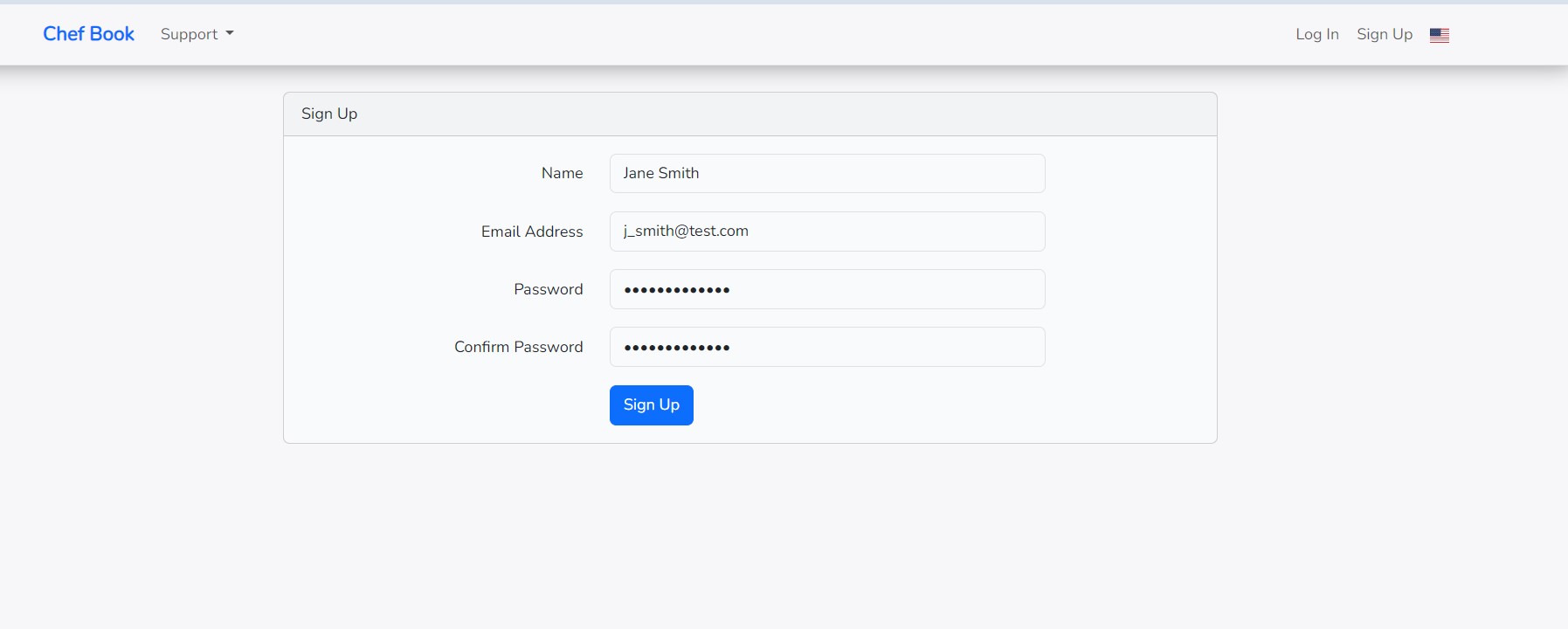
Please fill out this form and click the "Sign Up" button to complete the registration process.
How to Add Your First Recipe?
After a successful registration, you will find yourself on the main page of the website.
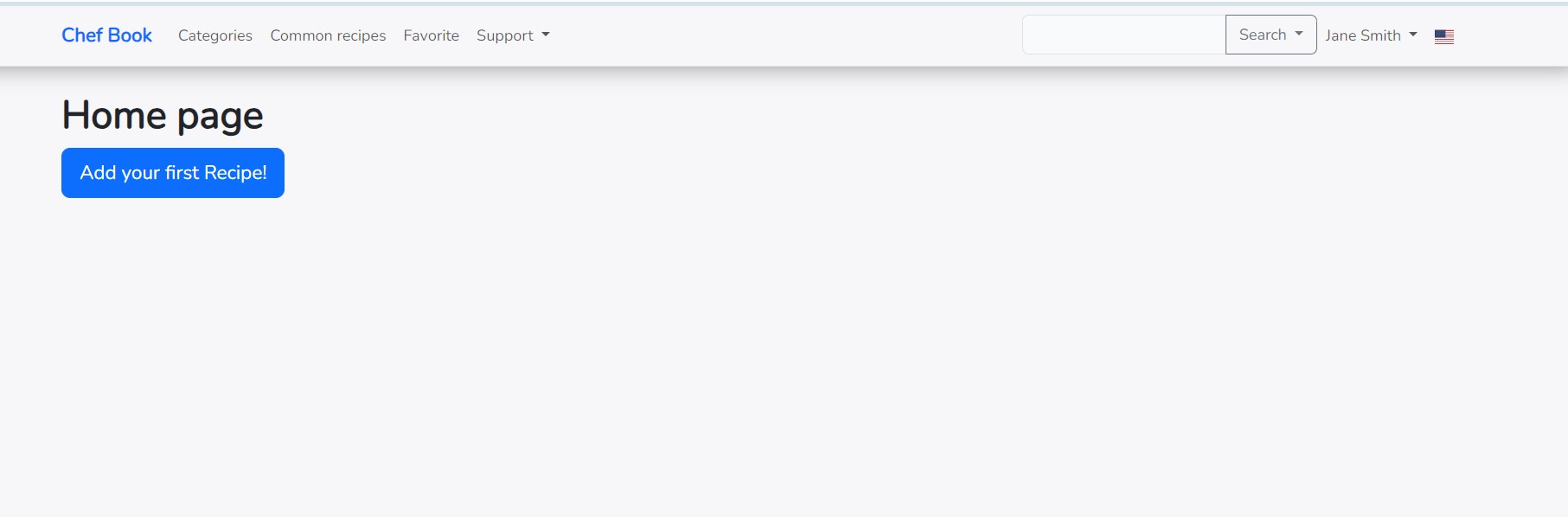
To quickly add your first recipe, click on the bright blue button "Add Your First Recipe!".
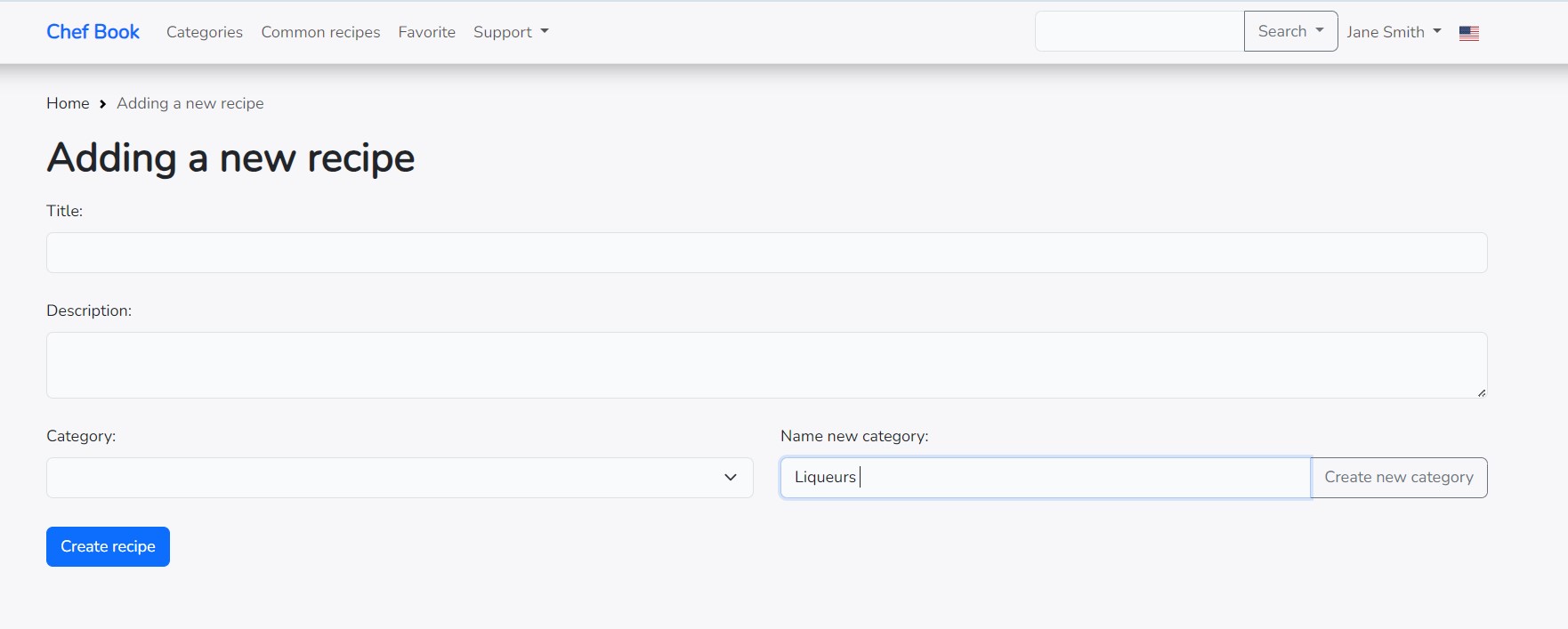
Each recipe belongs to a specific category. Since you don't have any created categories yet, let's create them right here. Enter the name of the new category in the corresponding field and click the "Create New Category" button.
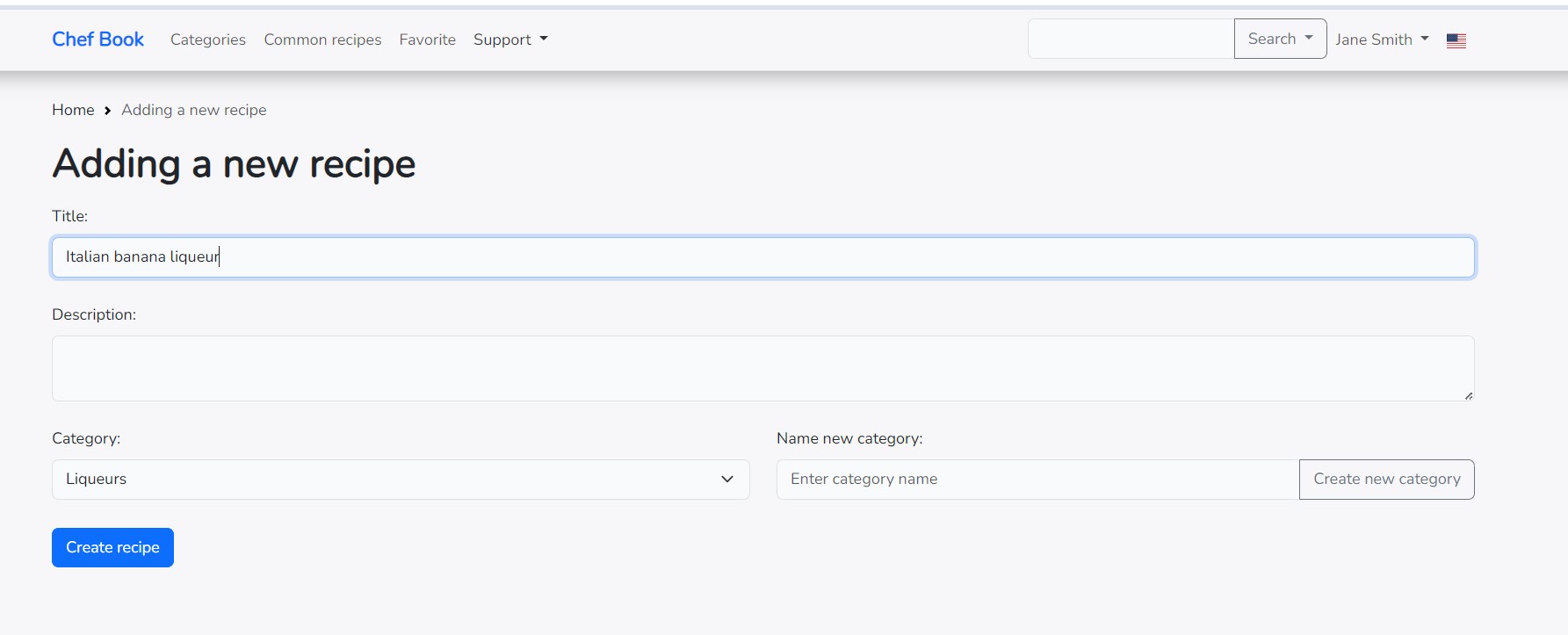
After creating a new category or selecting an existing one, enter the name of the recipe in the provided field. If necessary, add a description and click the "Create Recipe" button.
How to Add Ingredients to a Recipe?
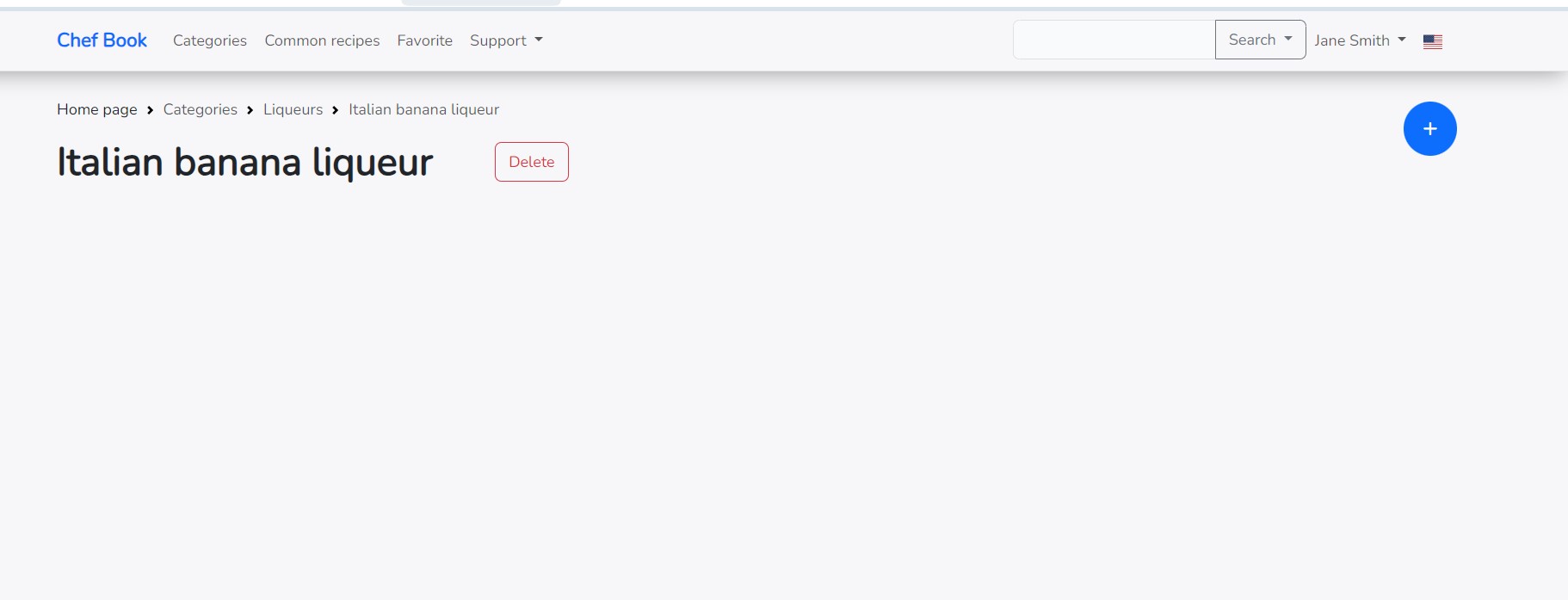
After creating a recipe, go to the recipe page and click on the blue circular "+" button in the top right corner.
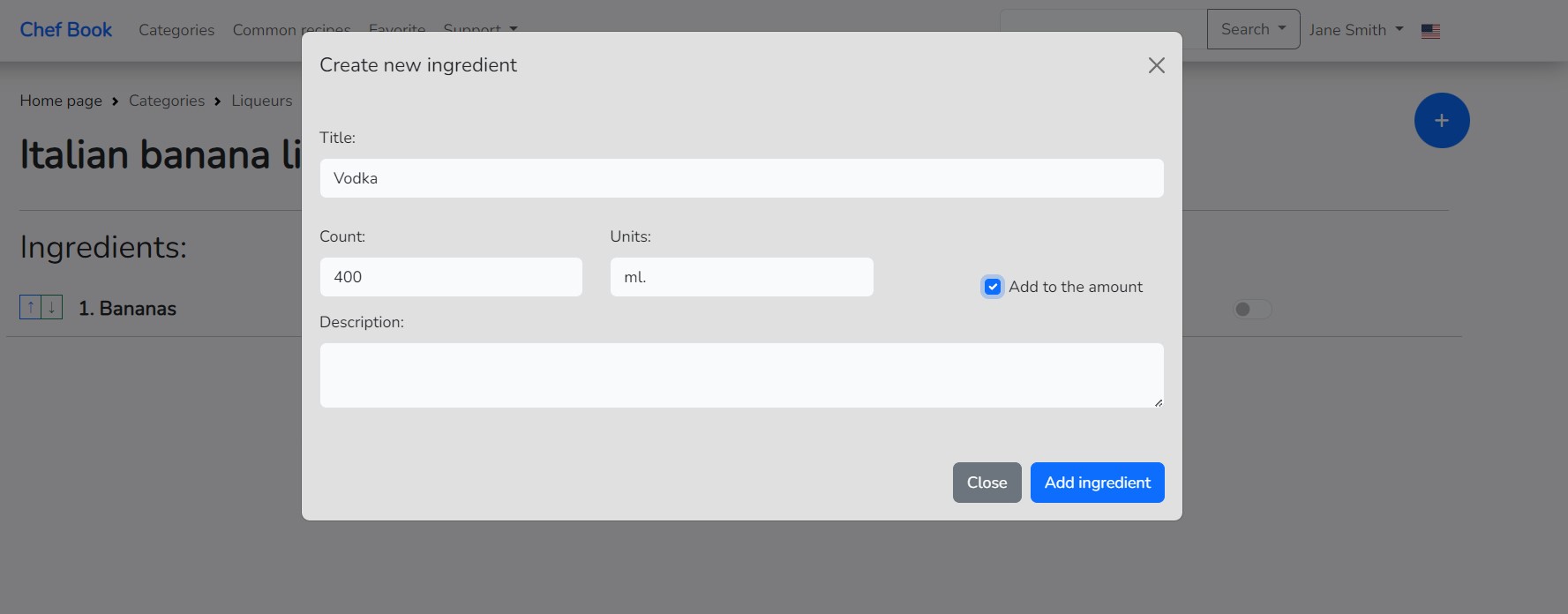
Add ingredients one by one to the form and click the "Add Ingredient" button.
Mandatory fields to fill: Title, Count, and Units.
Fill in the description as needed.
If the "Add to the amount" option is selected, the field value will be summed into the overall weight or volume.
After adding the ingredients, close the modal window by clicking the "X" in the top right corner or simply by clicking anywhere outside the modal window.
How to Add a YouTube Video Link to a Recipe?
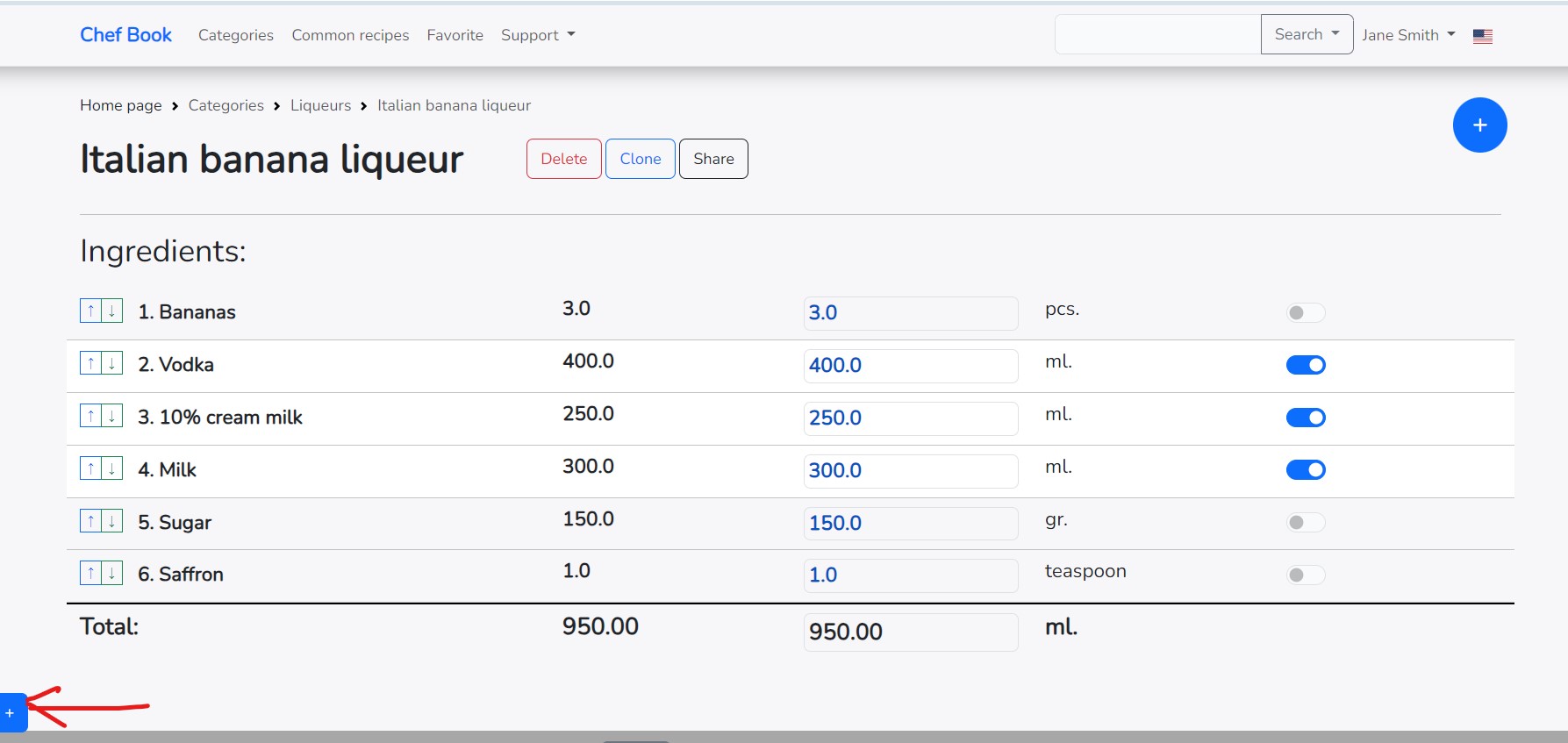
After creating a recipe, you have the option to add text for clarification or links to photos and videos on the recipe page. To open the article addition form, click on the blue square button "+" in the bottom left corner of the website.
Open the video on the YouTube service for which you want to add a link to the recipe. In the video window, right-click and select "Copy embed code".
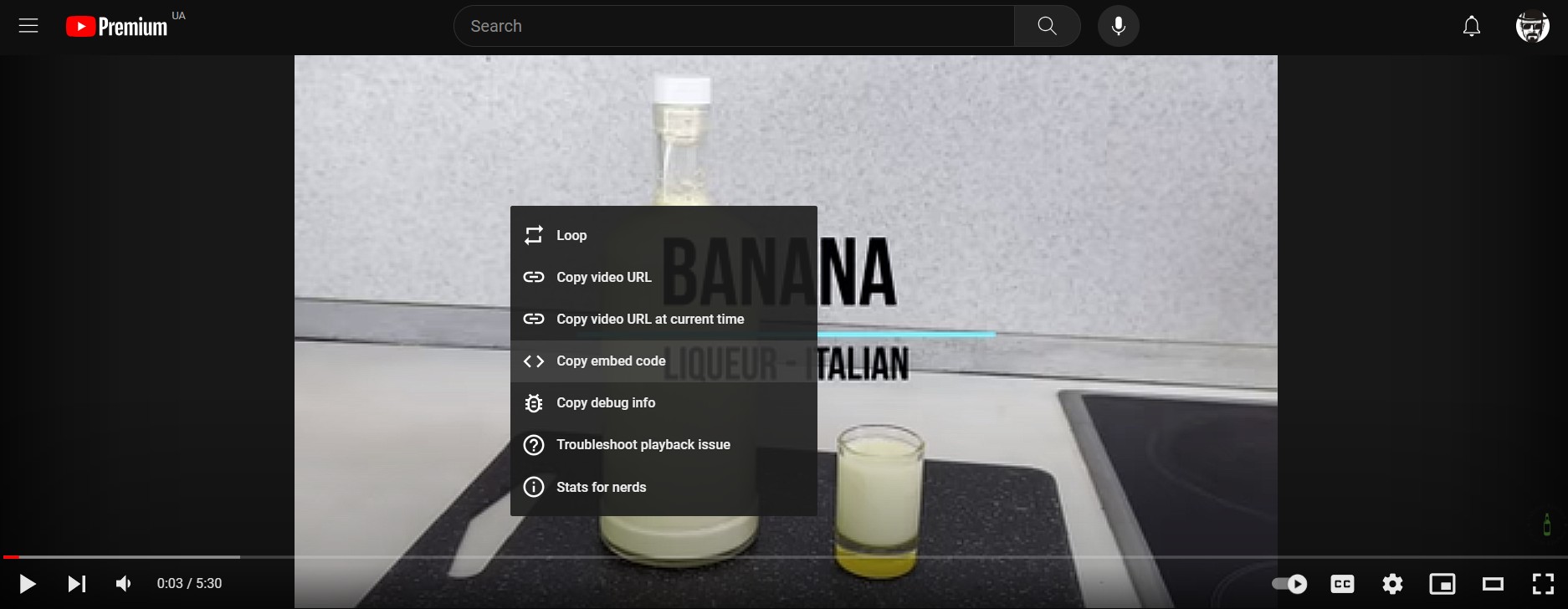
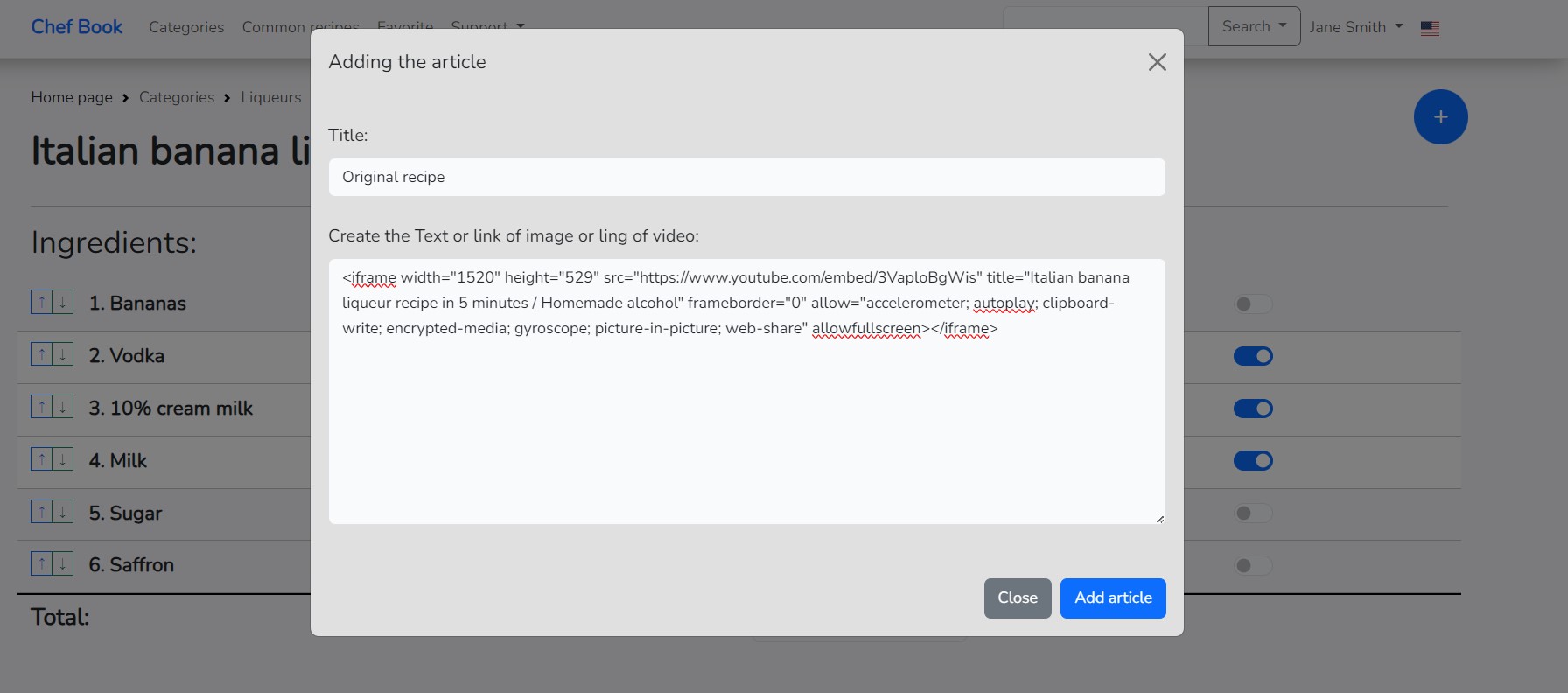
Paste the copied code into the form, as shown in the picture. If the link is copied correctly, the video will be available on the recipe page.
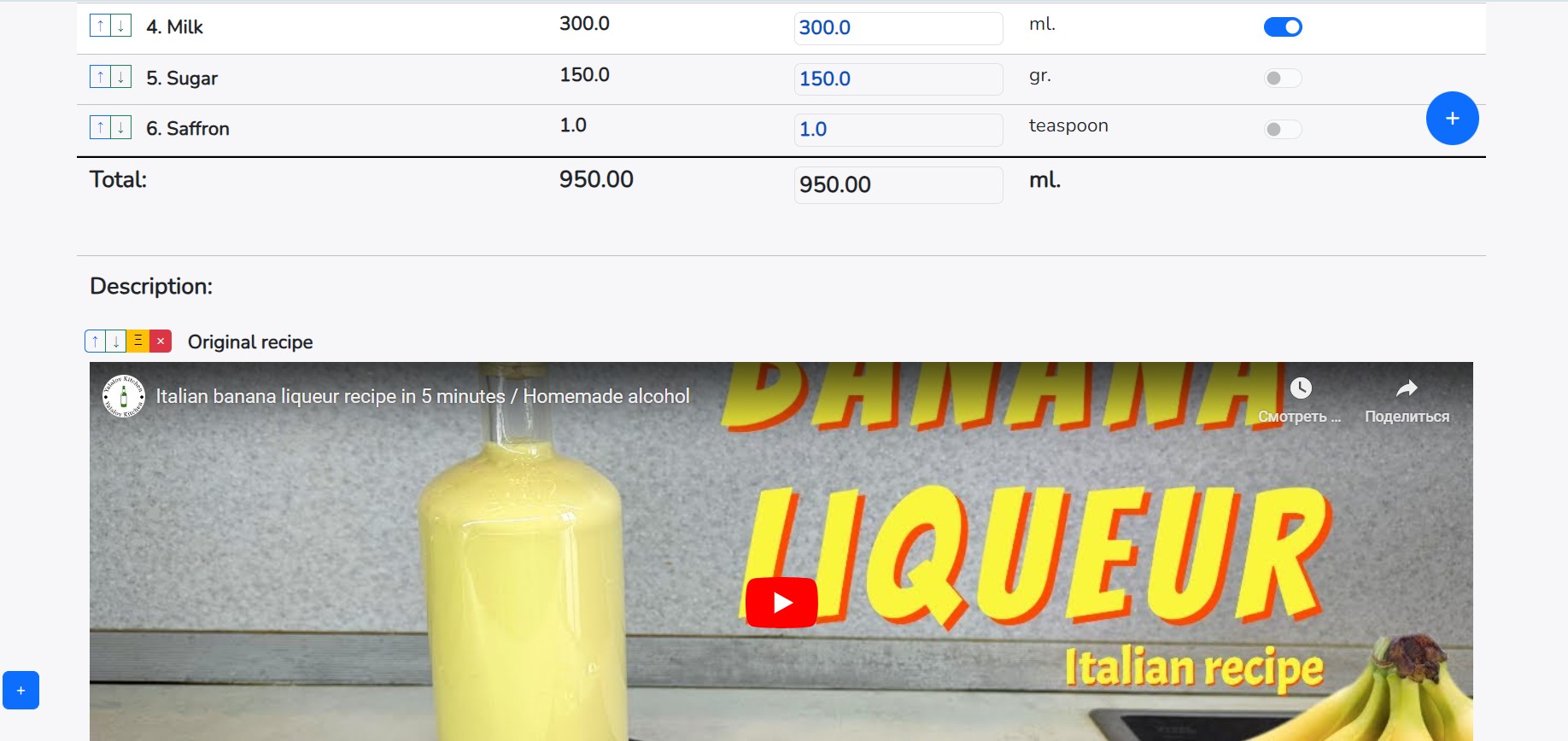
How to Add a Link to an Image in a Recipe?
Image uploads to the website are not provided, but you can add a link to an already uploaded image from the Internet. If you want to upload your own images, you need to upload them to any image hosting service and insert the link into the form on our website.
After creating a recipe, you have the option to add text for clarification or links to photos and videos on the recipe page. To open the article addition form, click on the blue square button "+" in the bottom left corner of the website.
Open the already uploaded image on any website, and right-click on that image. From the context menu, select "Copy image address".
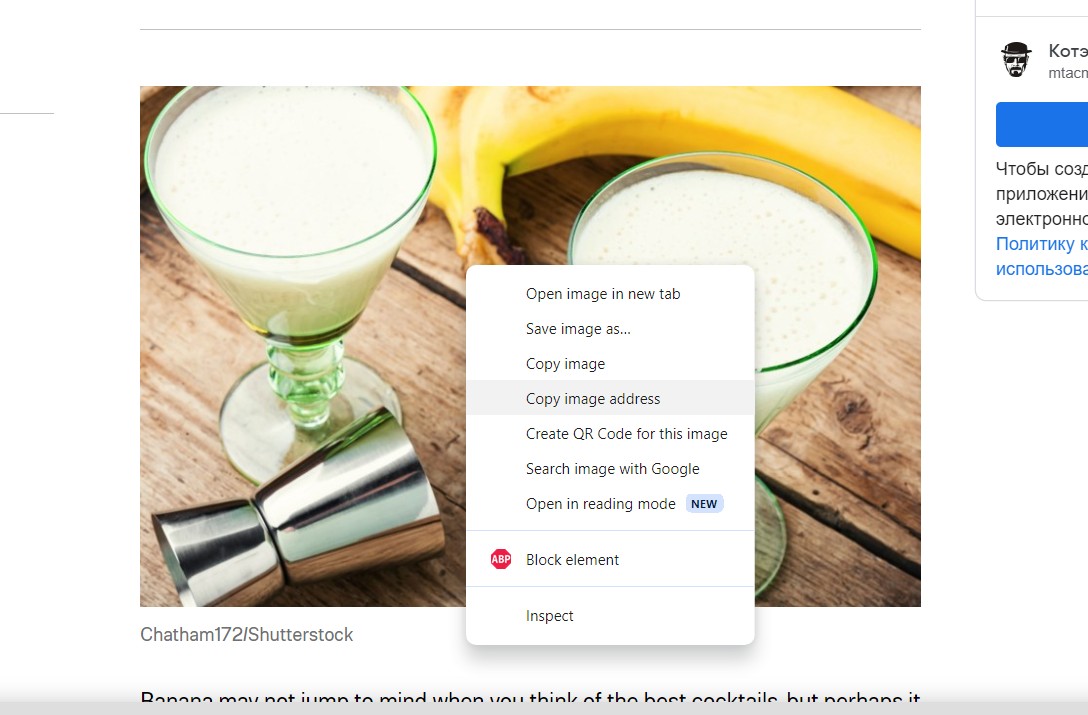
Paste the copied address into the form, as shown in the picture.
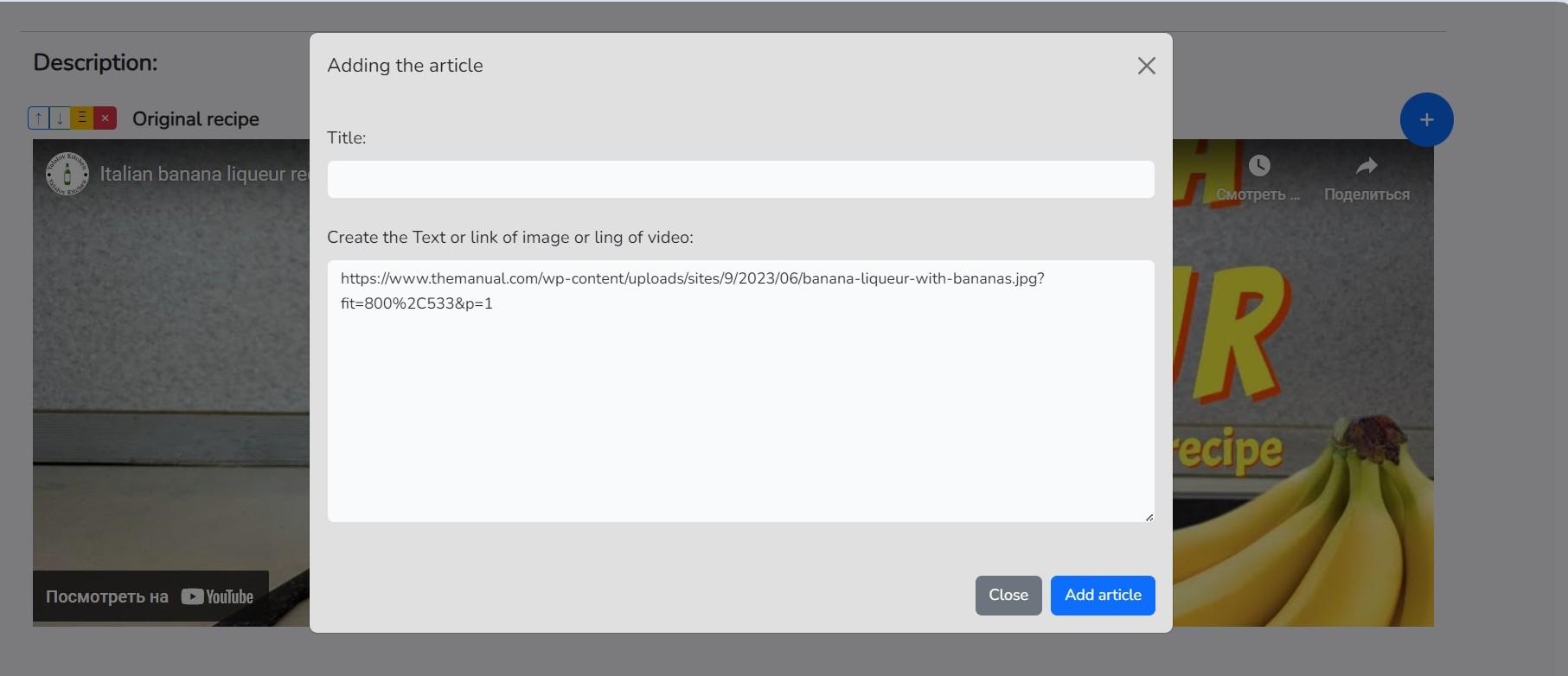
If the link is copied correctly, the image will become available on the recipe page.
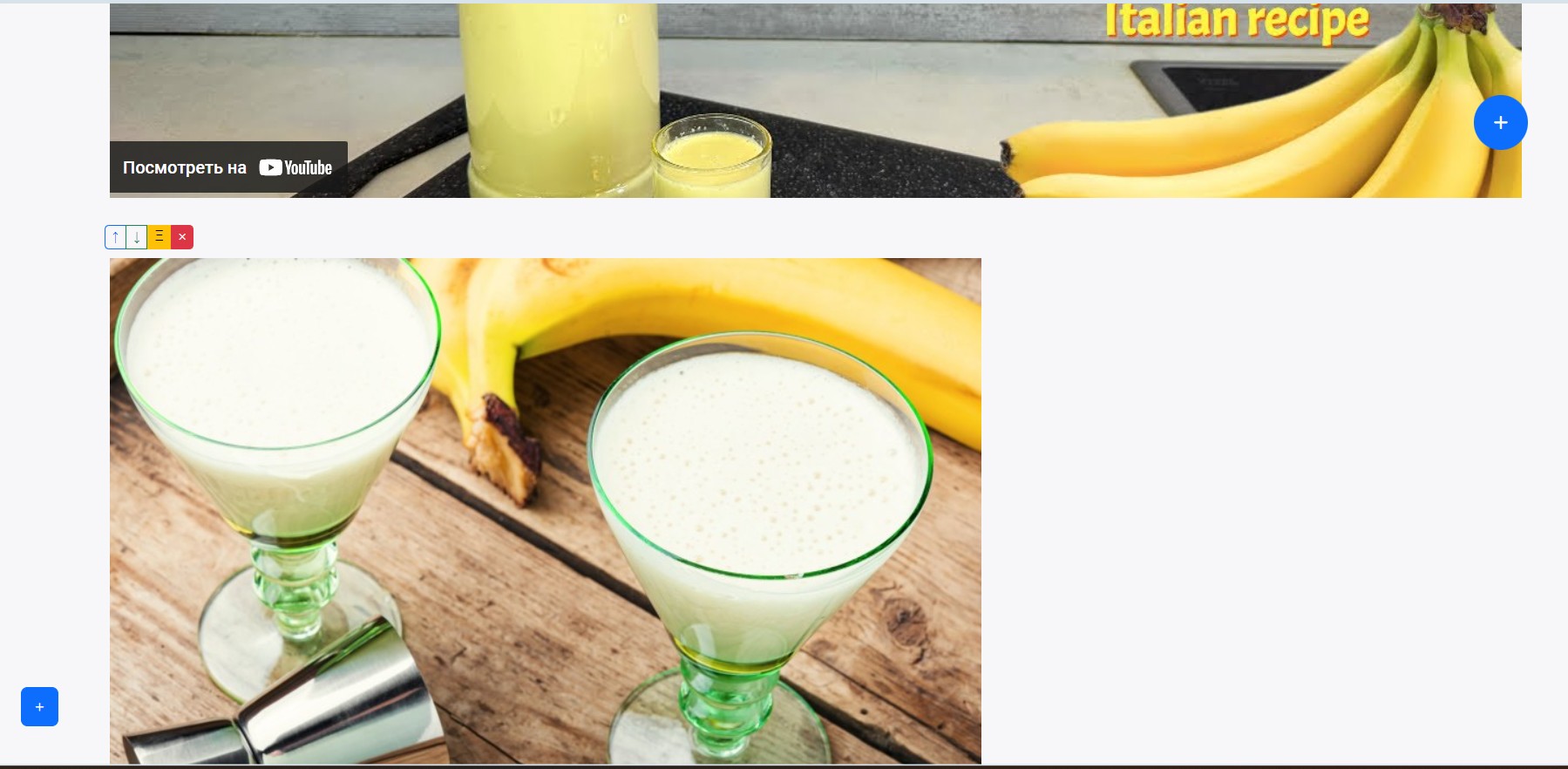
Various Actions with Recipe:
How to Quickly Change Ingredient Values in a Recipe?
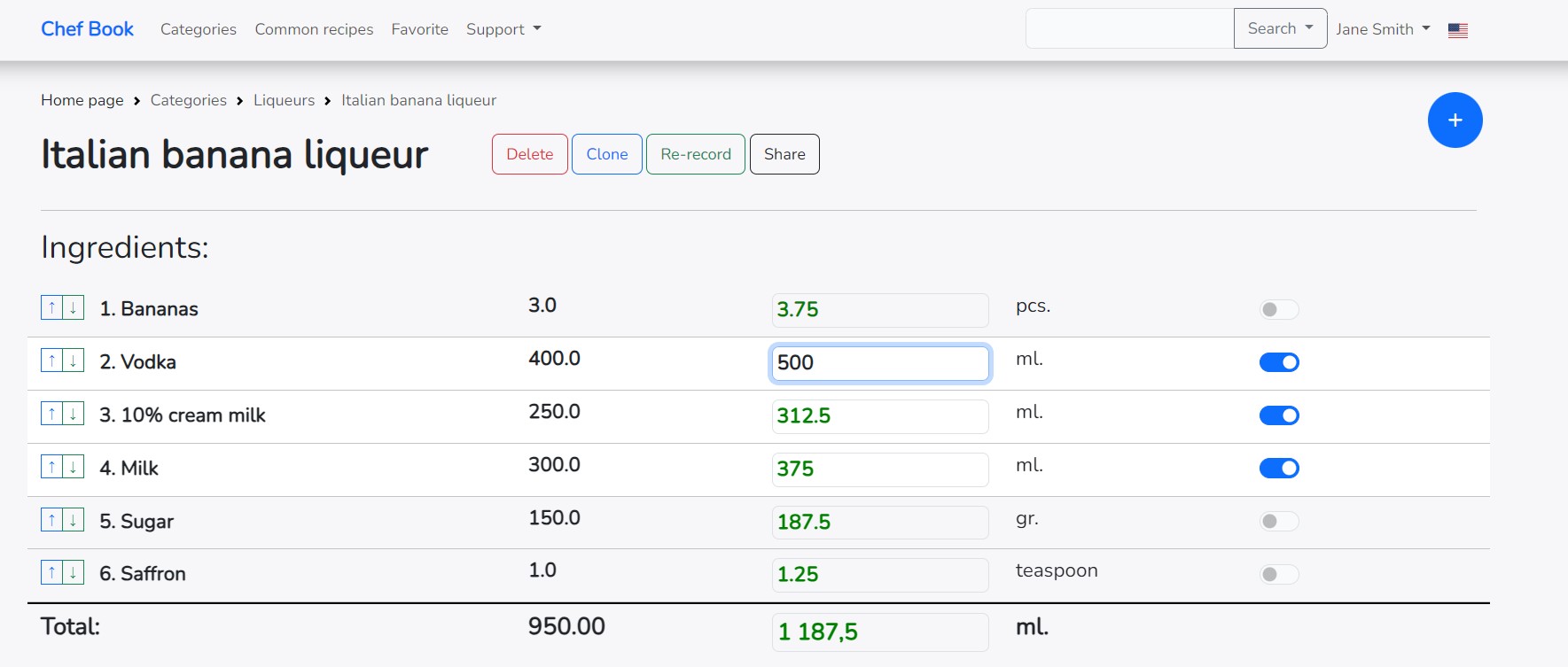
Imagine a situation where you have a recipe, for example, for a liqueur. It specifies the quantity of a certain ingredient, let's say vodka - 400 ml. Now you need to adjust all the ingredients for 500 ml of vodka. This quantity can be any, greater or smaller.
With our service, it's easy to do. As you probably noticed, the ingredient values are given in two columns. Initially, they match in the right and left columns. To adjust the quantity of ingredients, simply change the value of any ingredient in the right column and press "Enter" on the keyboard or click anywhere on the site. And that's it, all ingredients are recalculated!
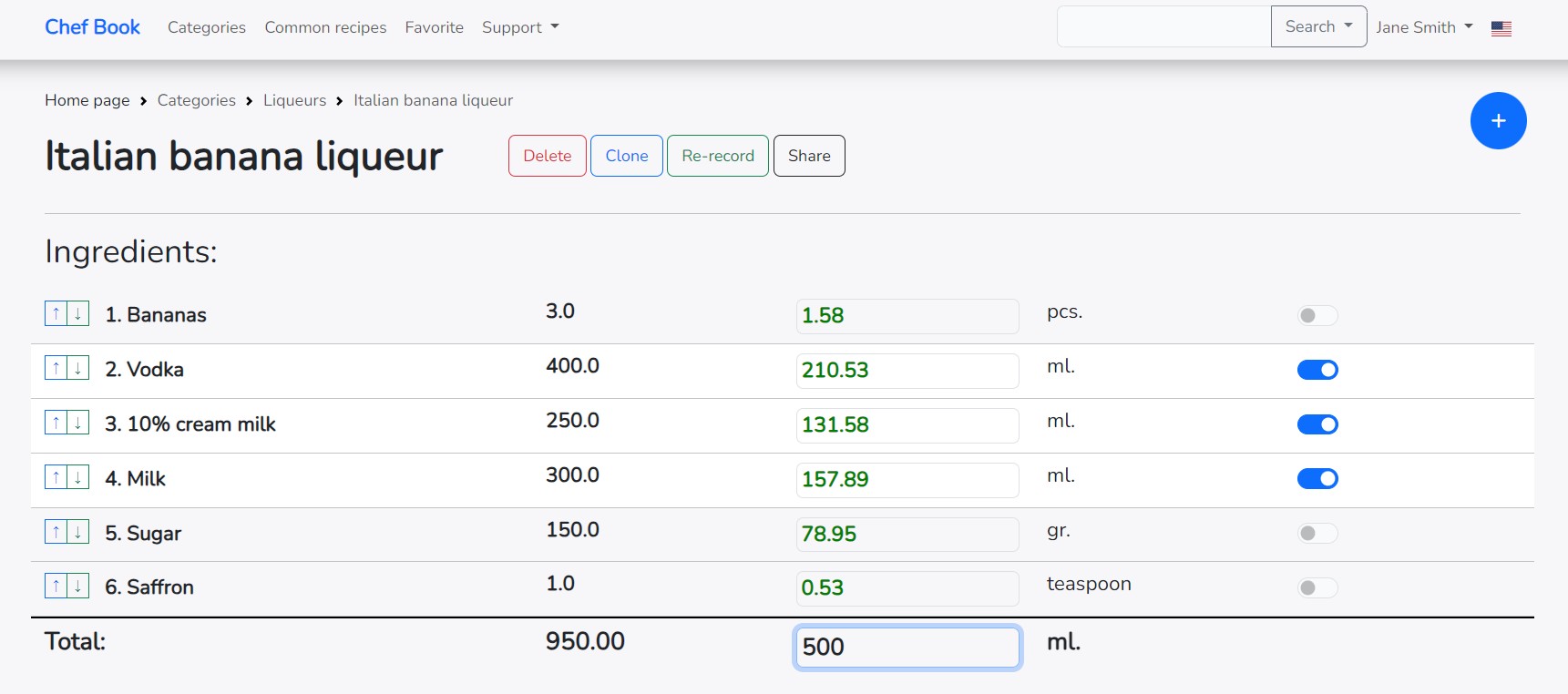
If you change the final amount of the recipe in the right column, all ingredients will also be recalculated for the entire recipe.
How to quickly overwrite new ingredient values in the recipe?
After you make changes and the application updates the quantity of ingredients, it is sometimes useful to overwrite the recipe with new data. After changing the quantity of ingredients, a green button appears to the right of the recipe name: "Re-record".
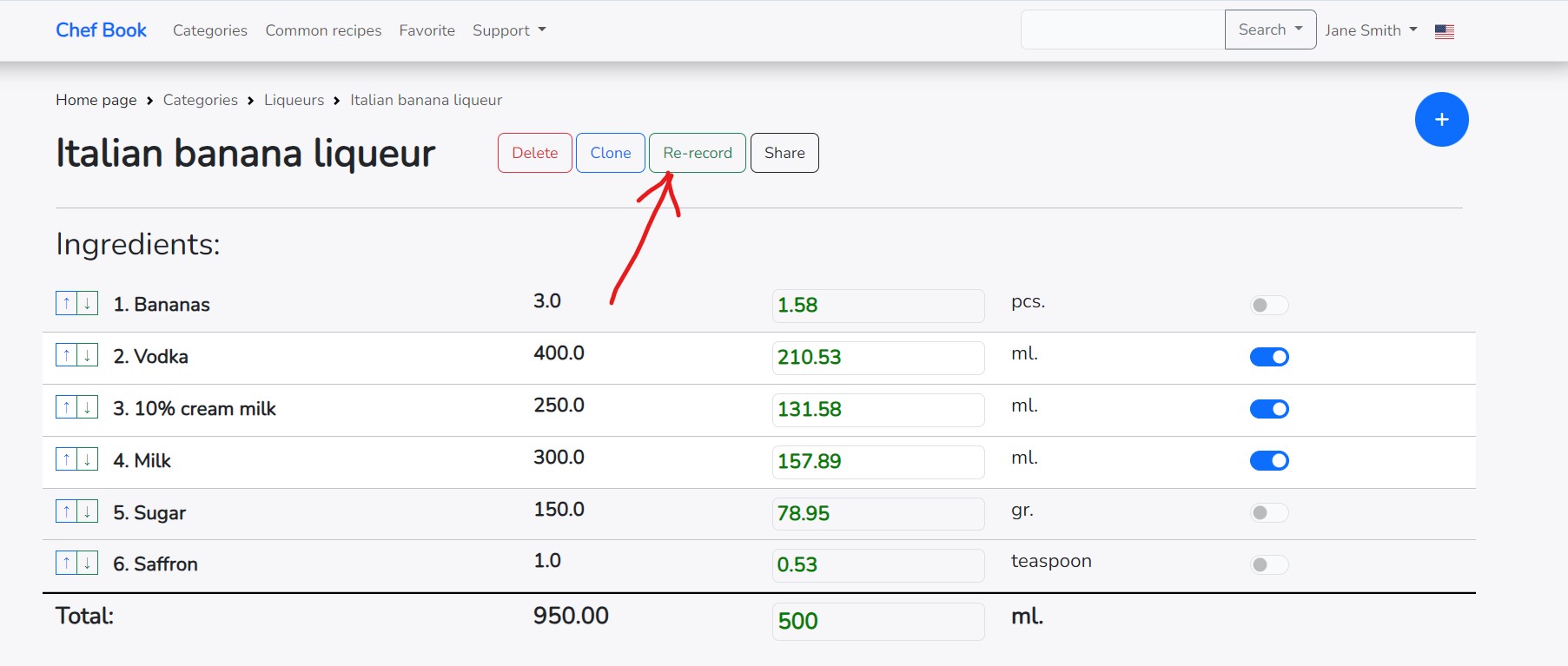
To overwrite the recipe with new data, click on the "Re-record" button.
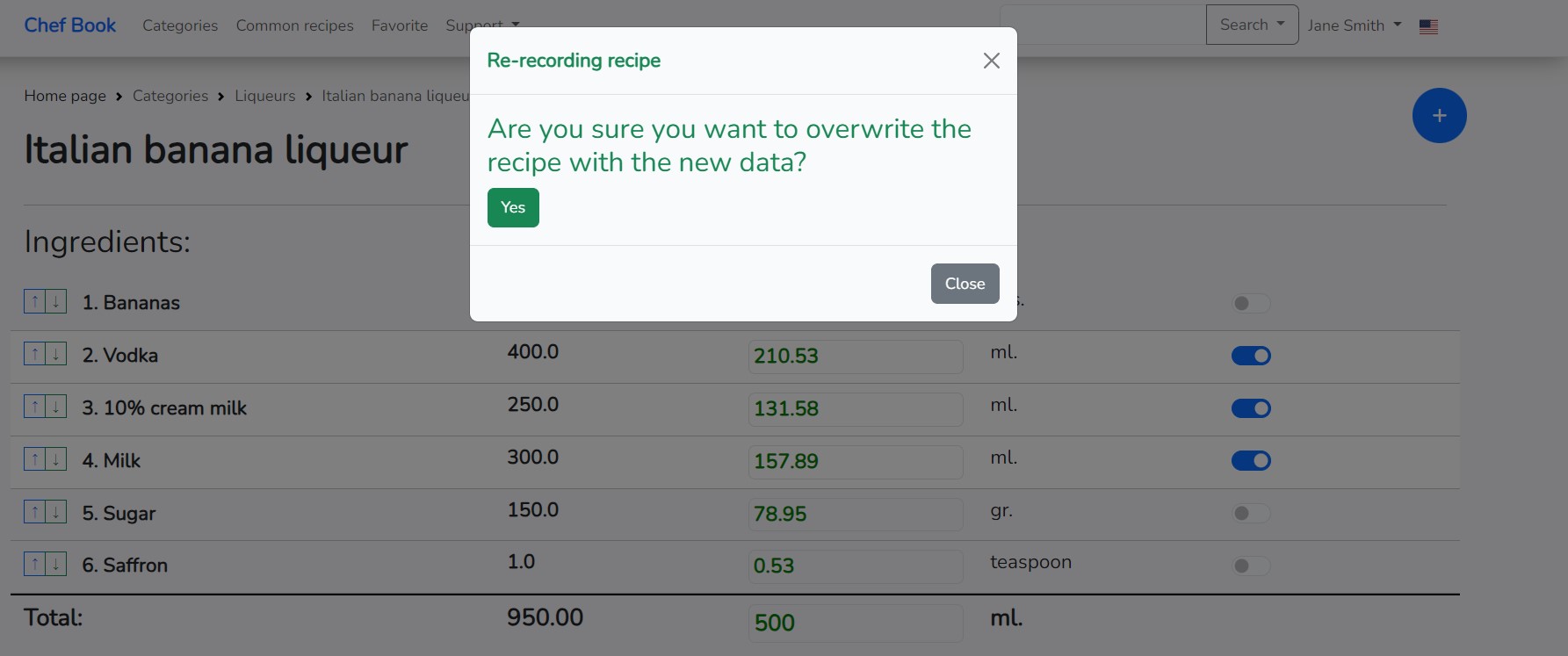
Confirm your choice, and you will receive the recipe with new data on the quantity of ingredients.
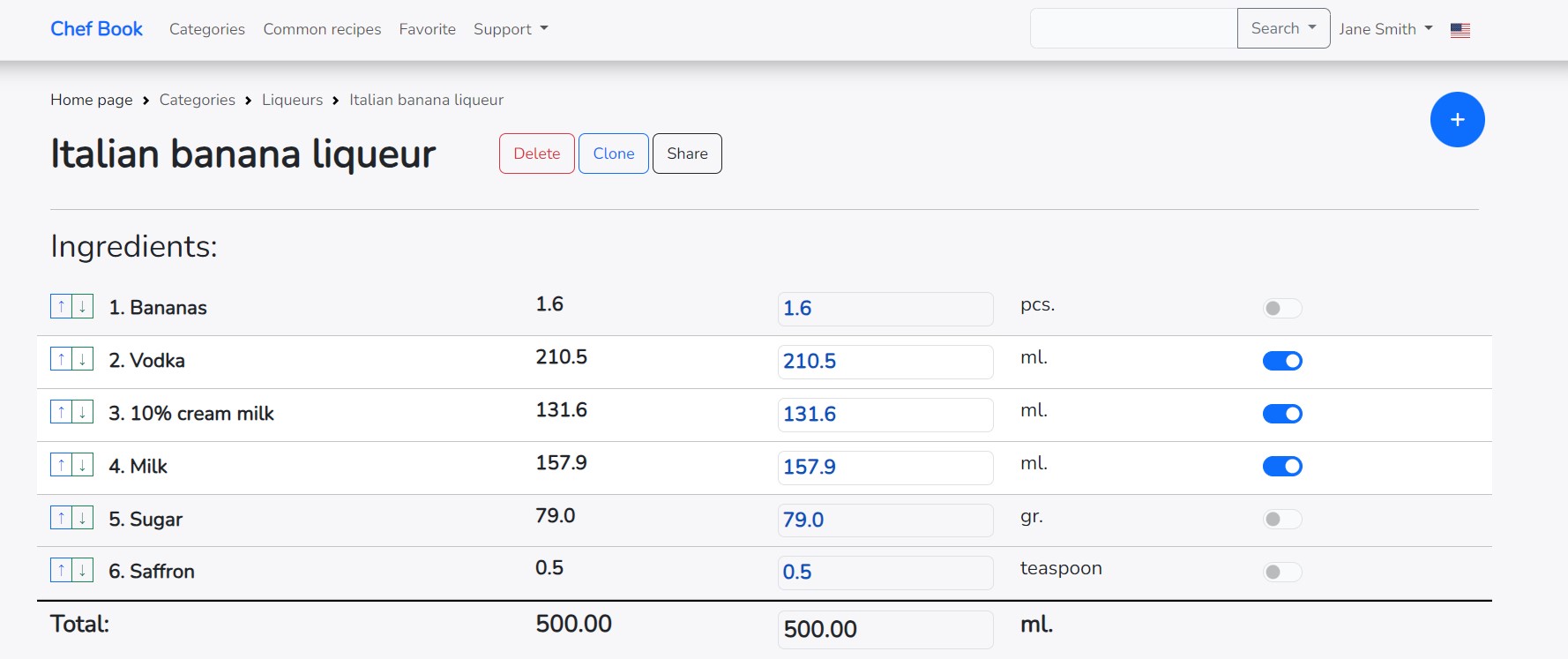
How to quickly clone your recipe?
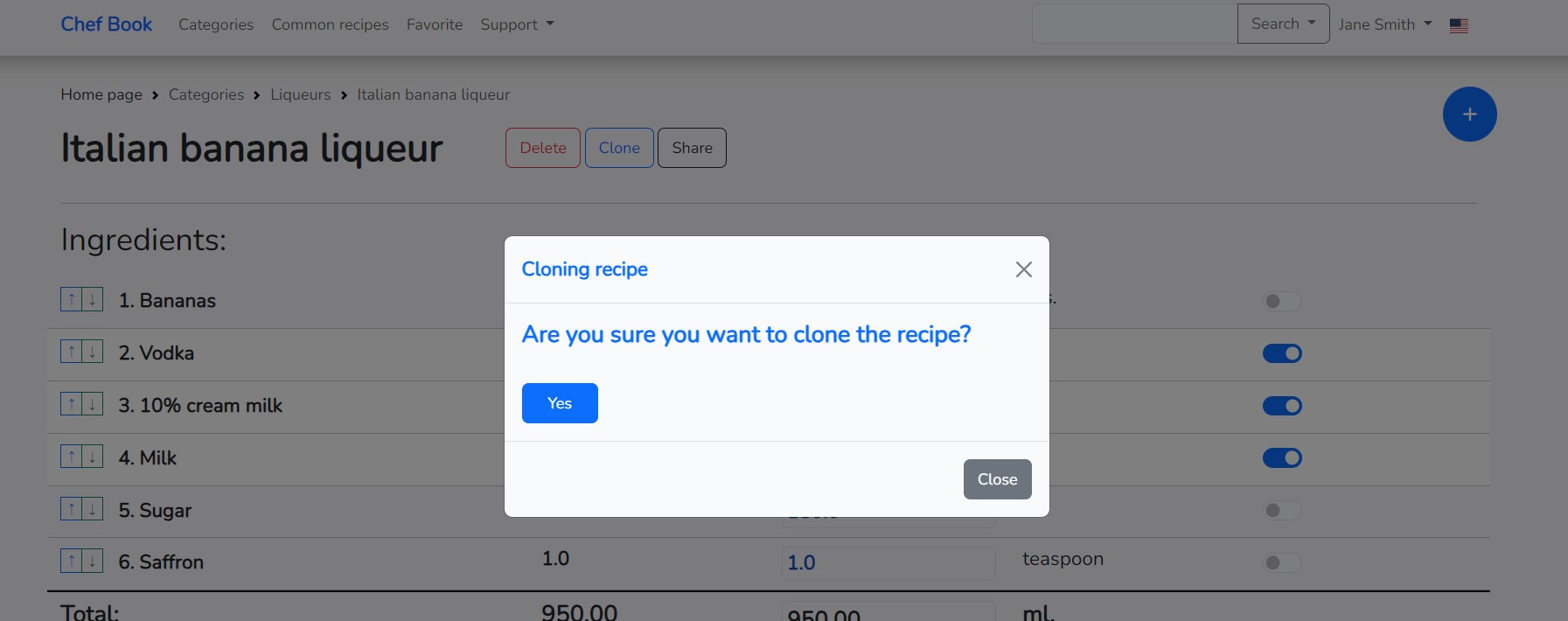
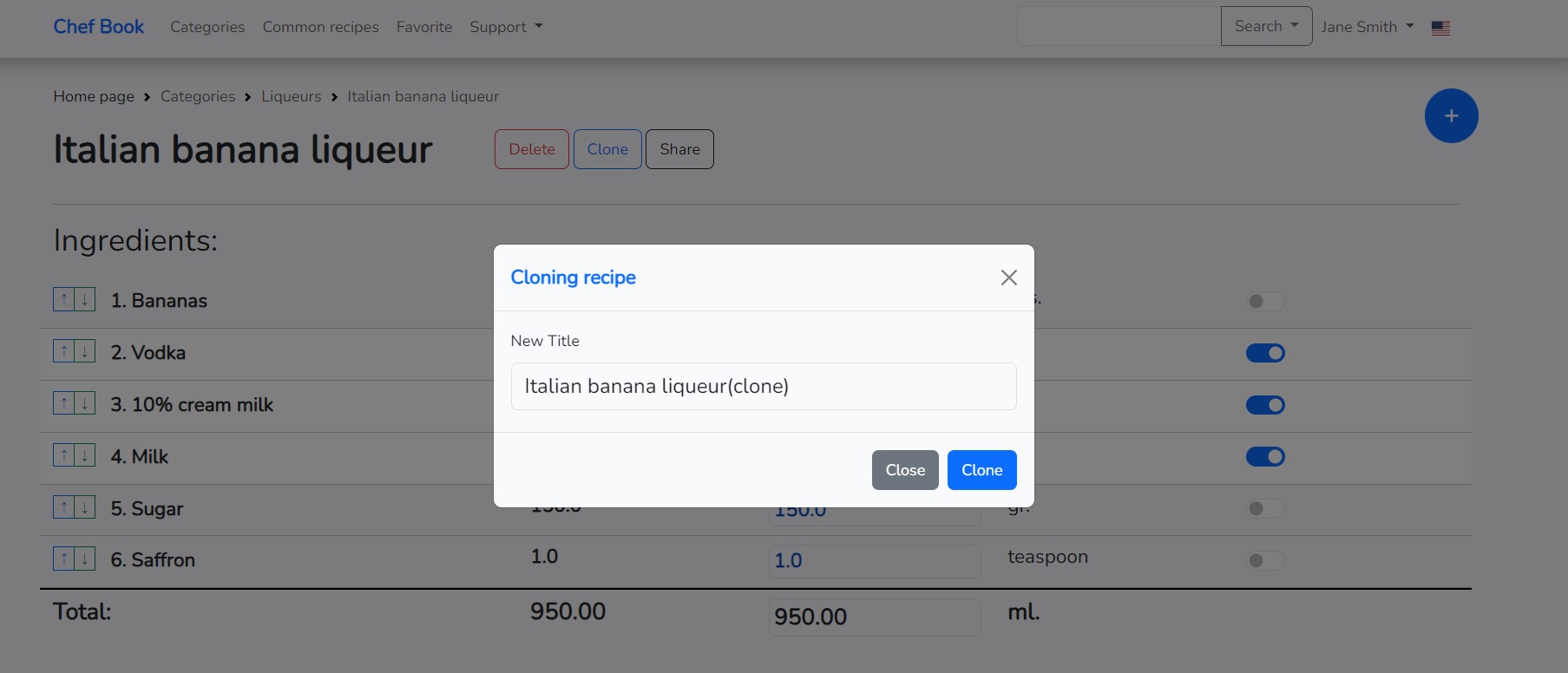
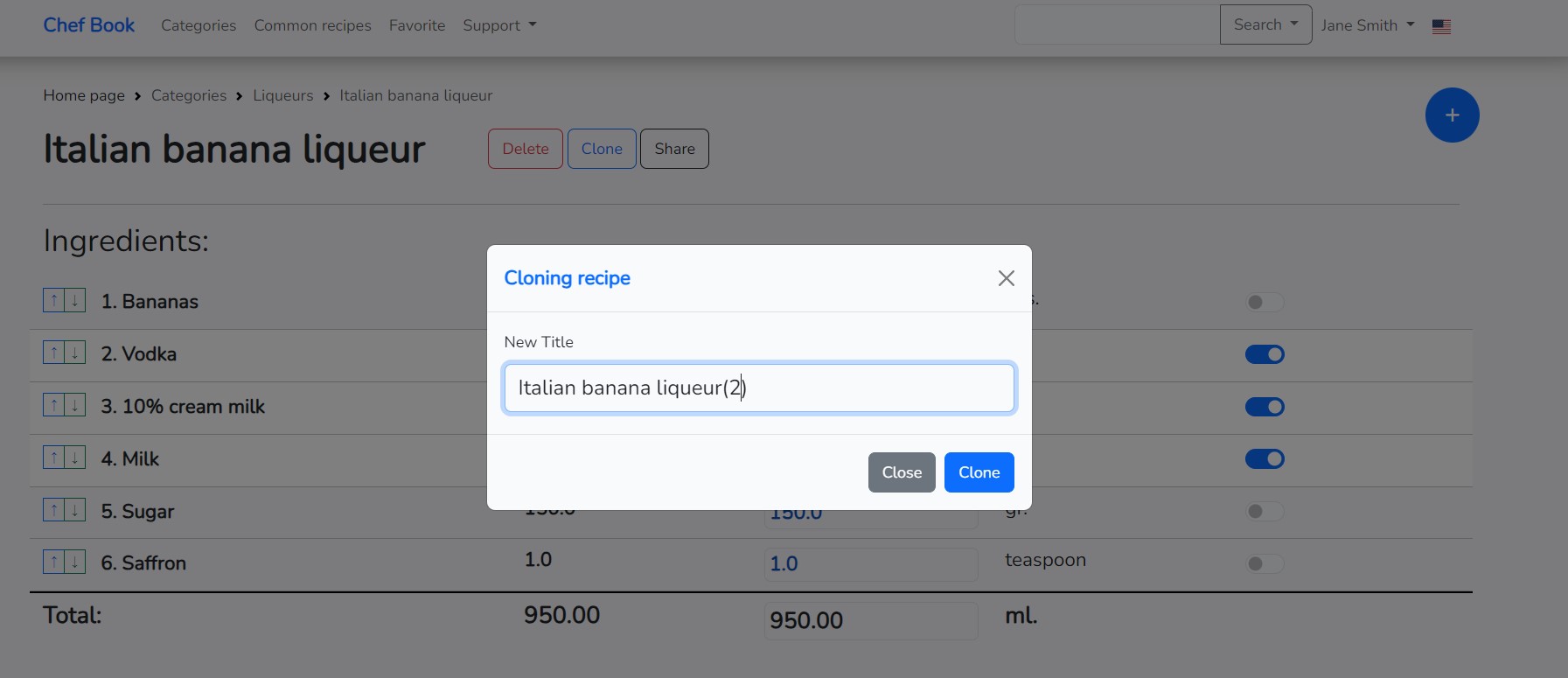
If you need to create a recipe based on an existing one, you can clone the already created recipe and make changes to it. The application has a cloning function for this purpose. To clone a recipe, click on the "Clone" button located to the right of the recipe name on the recipe page. The button becomes active only if the recipe has at least one ingredient. Click on the "Clone" button to start the recipe cloning process.
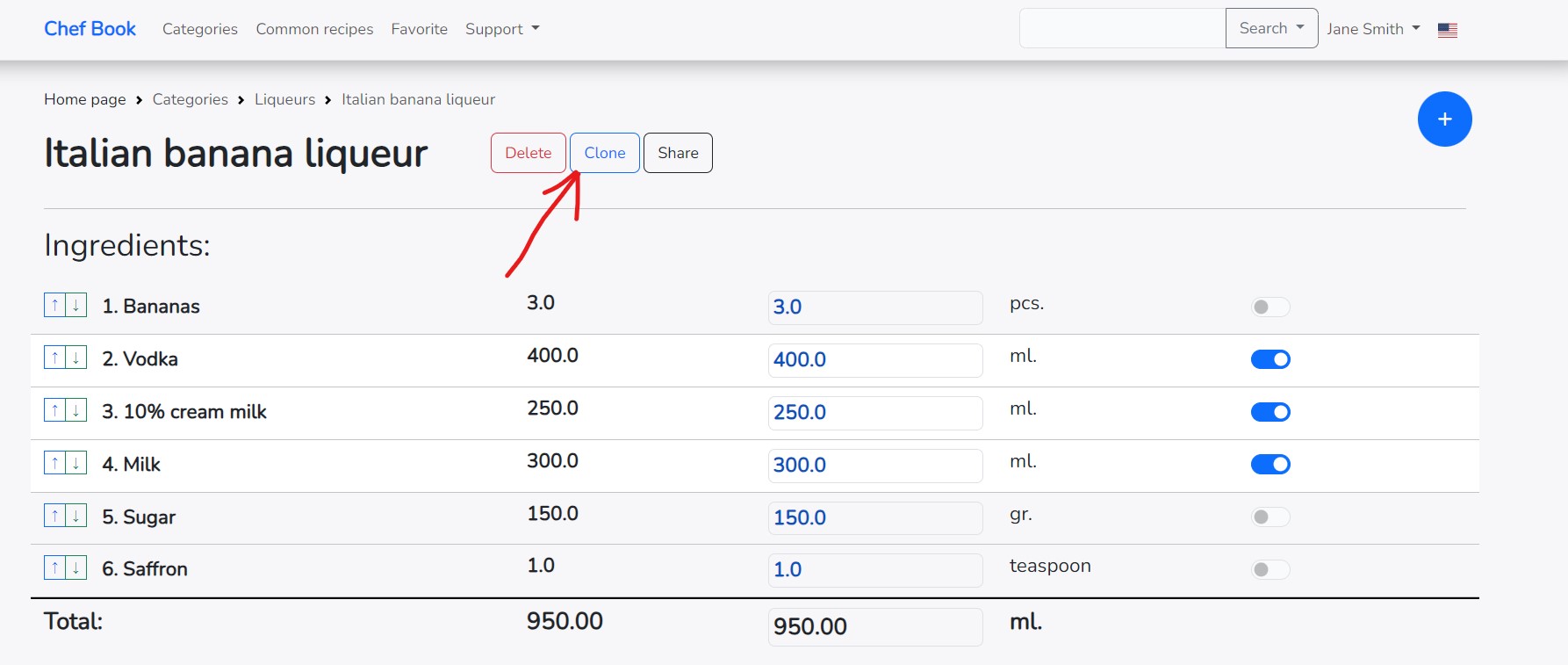
Confirm your choice
This is the default name, which can be changed
After changing the name, click the "Clone" button
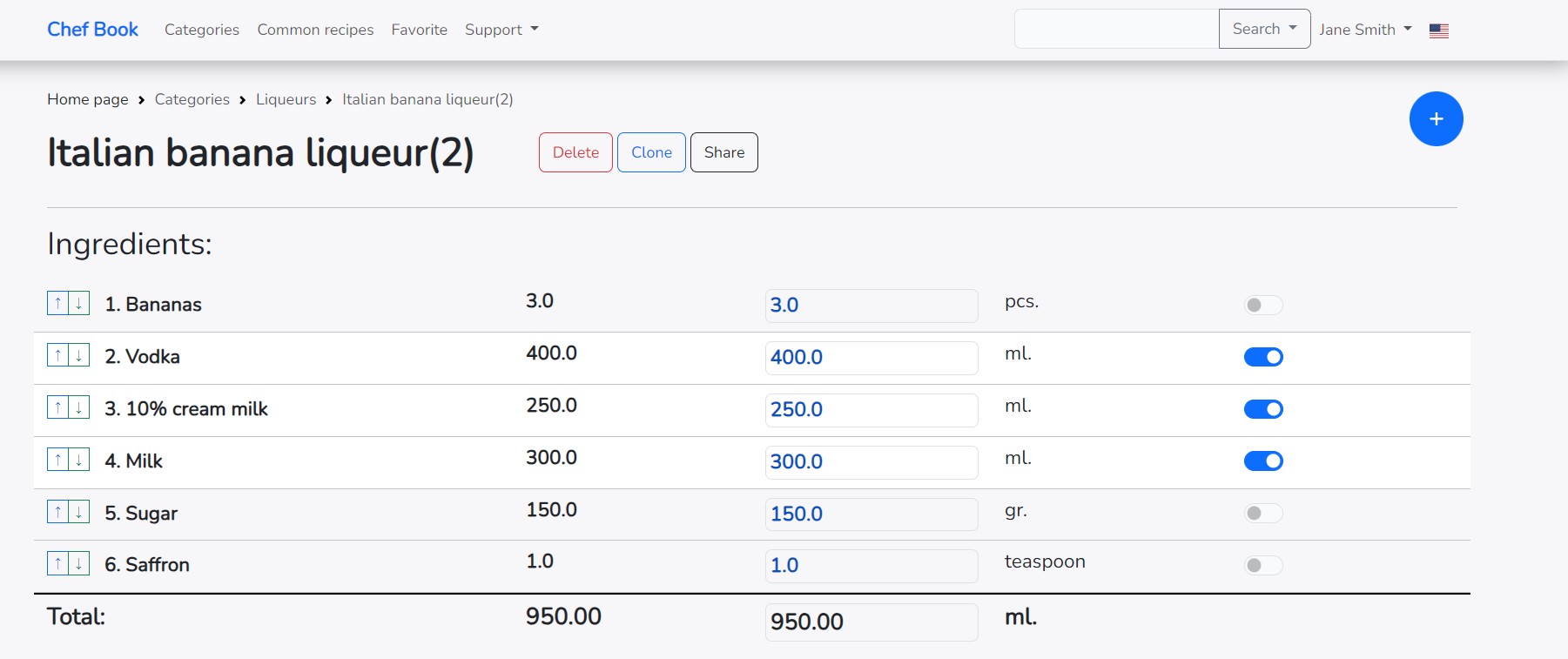
A copy of the recipe has been created, into which changes can now be made
Various manipulations with recipe ingredients
You can perform various manipulations and edits with recipe ingredients. You can change the name of the ingredient, its quantity, and units of measurement. You can disable or enable its participation in the total recipe amount, delete the ingredient, and also change its sequence number in the recipe.
To change the order of arrangement of the ingredient in the recipe, arrows "Up" and "Down" are located to the left of each ingredient. By clicking on these arrows, you can change the order of ingredients in the recipe.
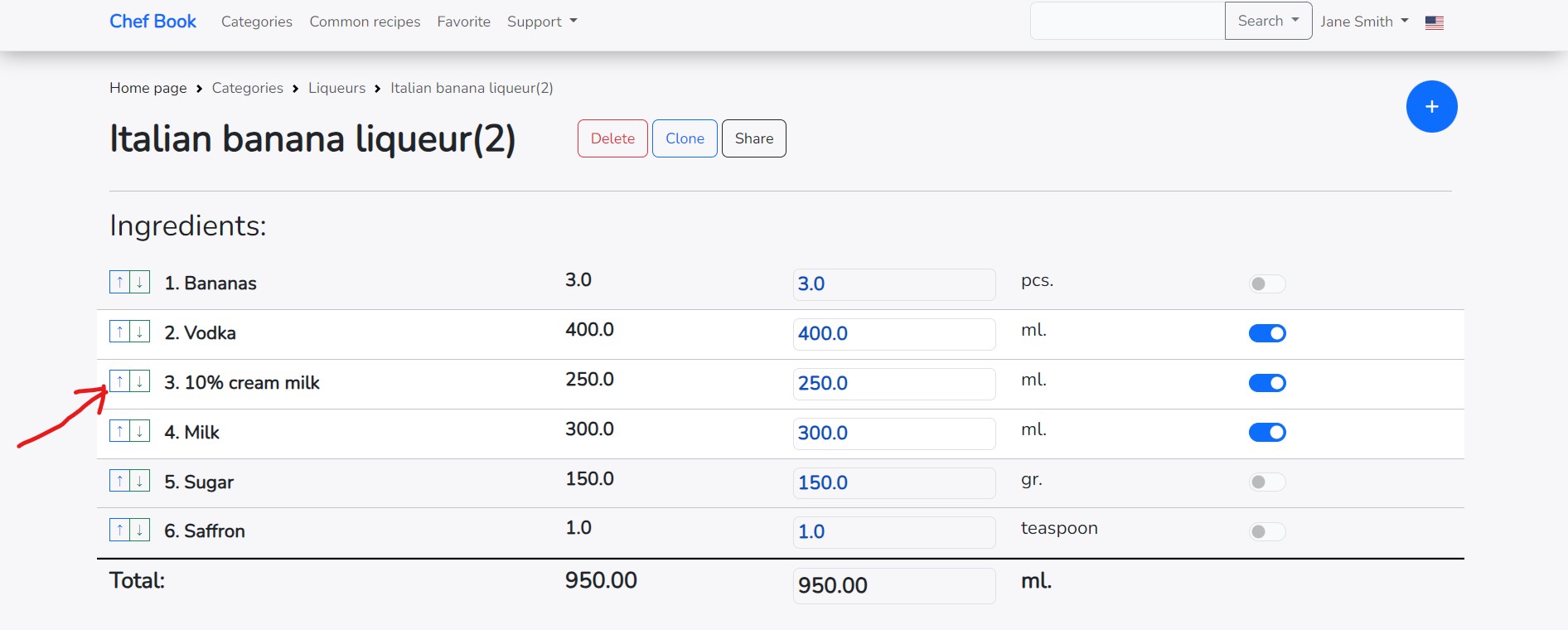
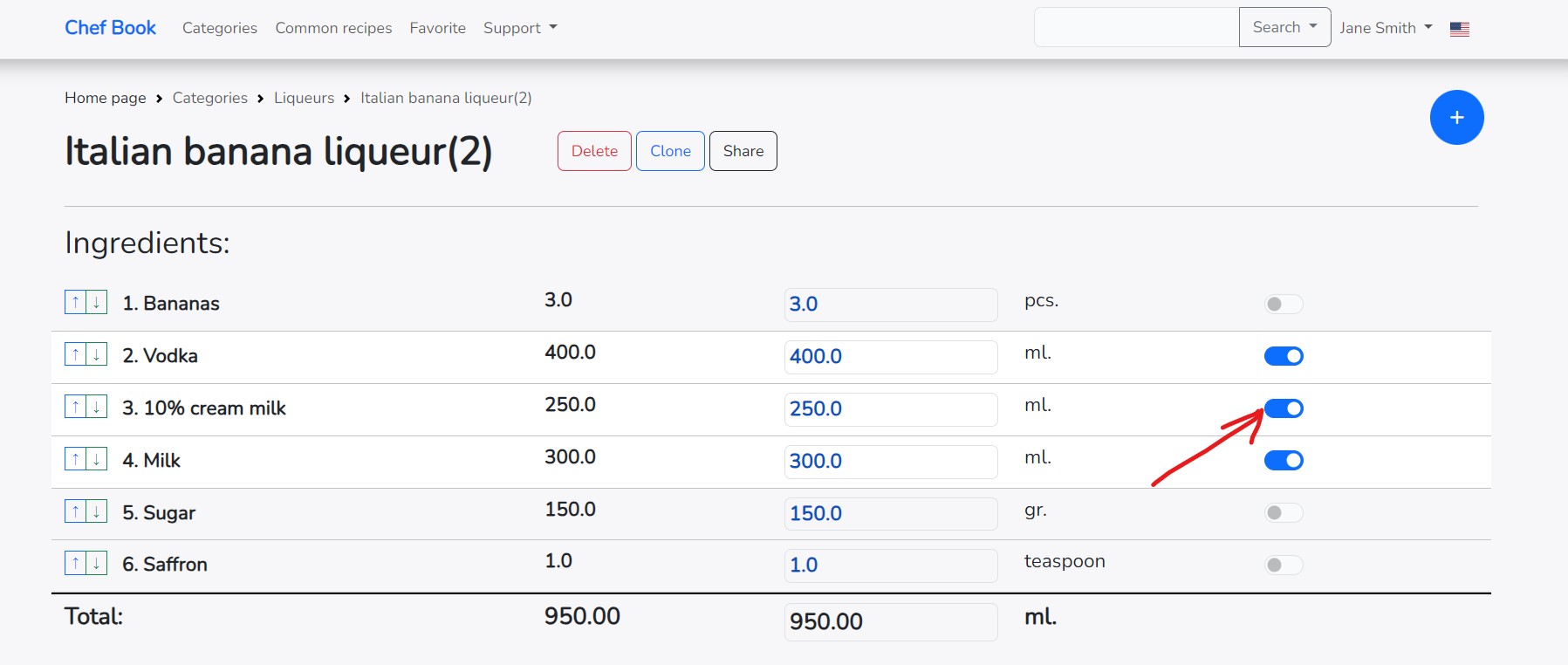
To account for or not account for the quantity of the ingredient in the total recipe amount, a switch labeled with an arrow is used. By toggling it, you can include or exclude the quantity of the ingredient from the total weight, volume, or other indicators in the recipe.
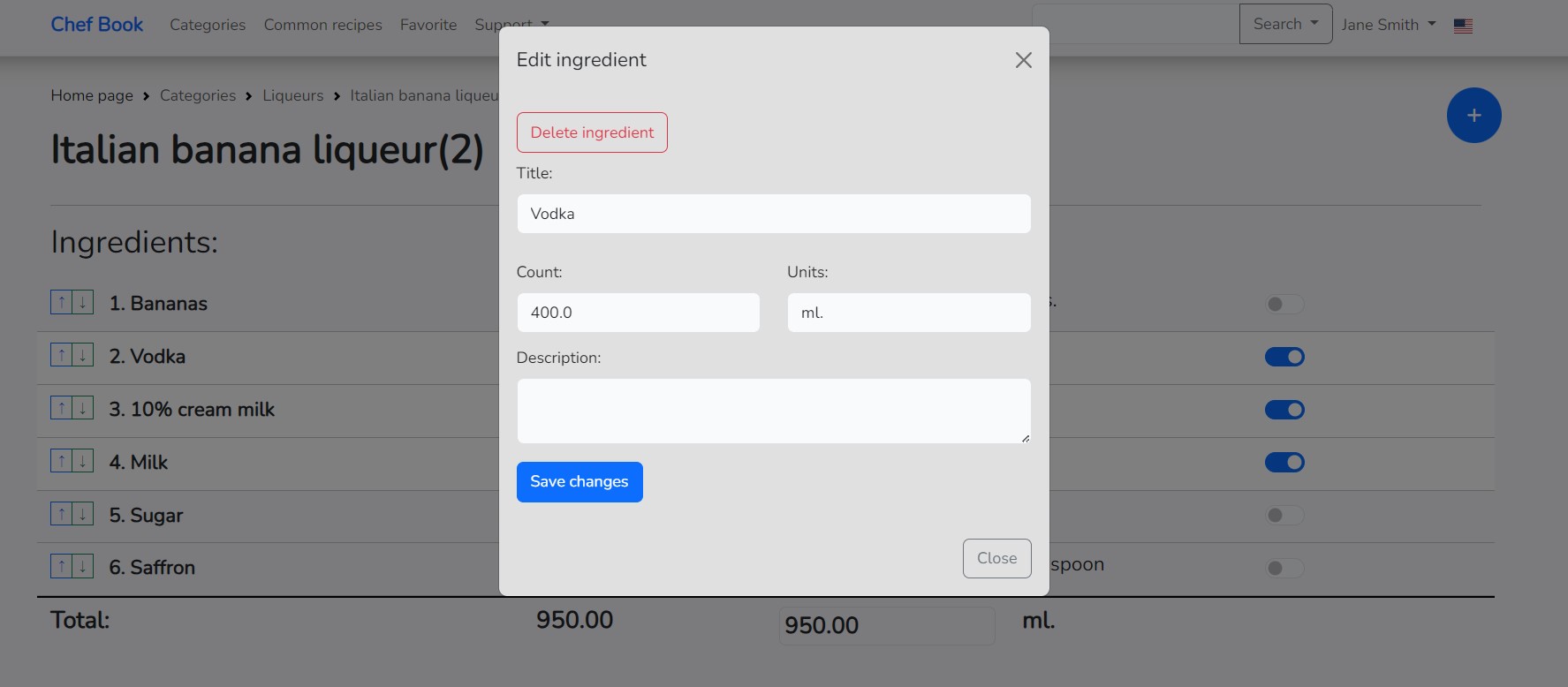
When clicking on the name of the ingredient, a dialog window for editing the properties of the ingredient opens, such as "Title", "Count", and "Units" of measurement, as well as "Description". Also, in this window, there is a button for deleting the ingredient, clicking on which you can remove the ingredient from the recipe.
How to share your recipe with friends?
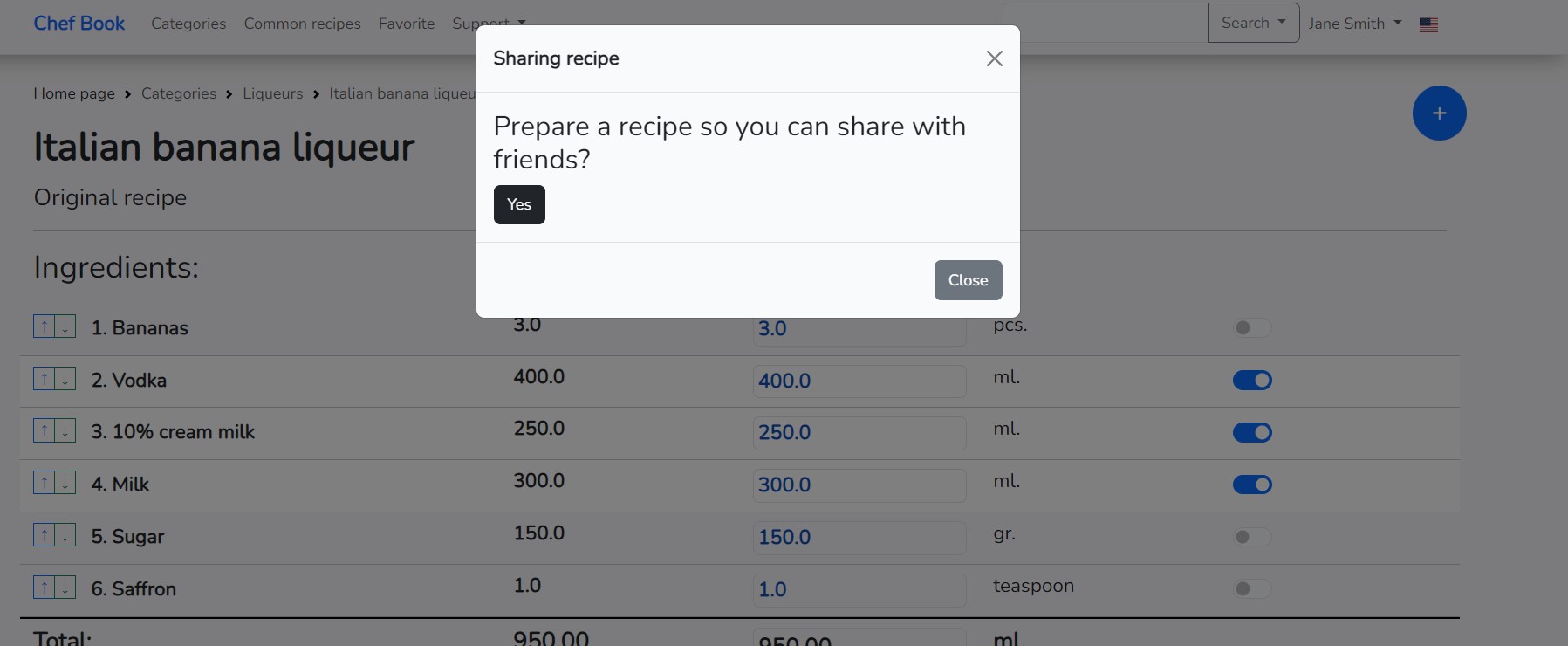
To prepare a recipe that you can share with any user, even those not registered on the Website, click on the "Share" button located to the right of the recipe name.
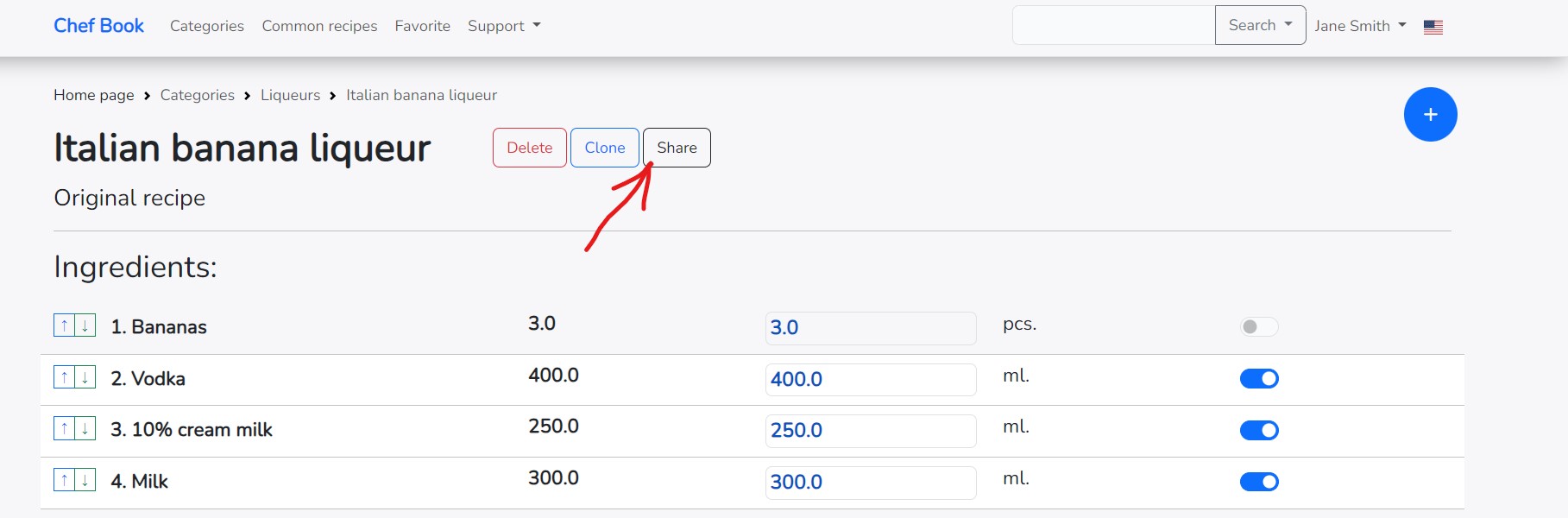
And confirm your choice
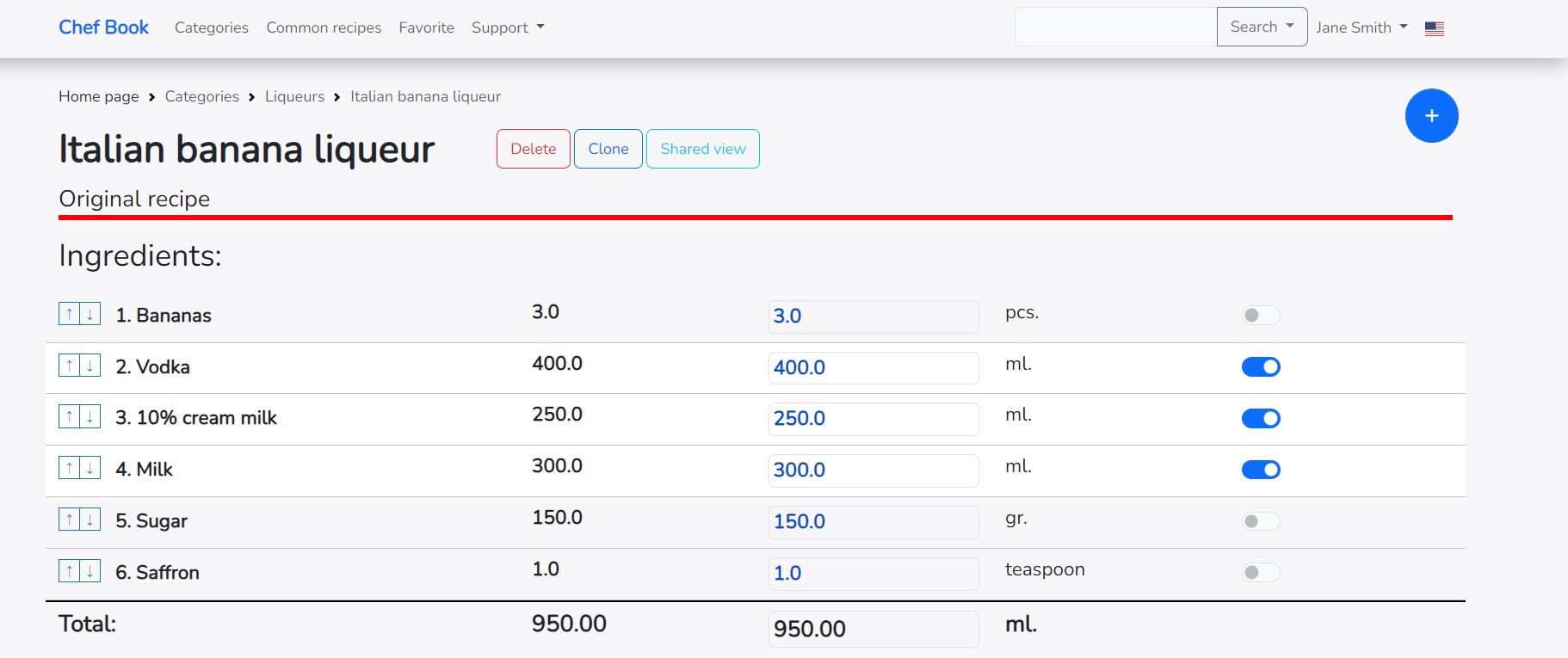
The appearance of the recipe has changed slightly. A red stripe has appeared under the recipe name, indicating that this recipe becomes public for all users of the site, and will also be visible via a link even to unregistered users.
Important! Recipes that become public cannot be deleted, even by the author of the recipe. If the author of the recipe deletes the public recipe, they will only sever their connection with it, but the recipe will still be visible to everyone with the link, and such a recipe can also be found in the search for public recipes.
To obtain a link to the recipe, click on the "Share view" button, which is available for public recipes.
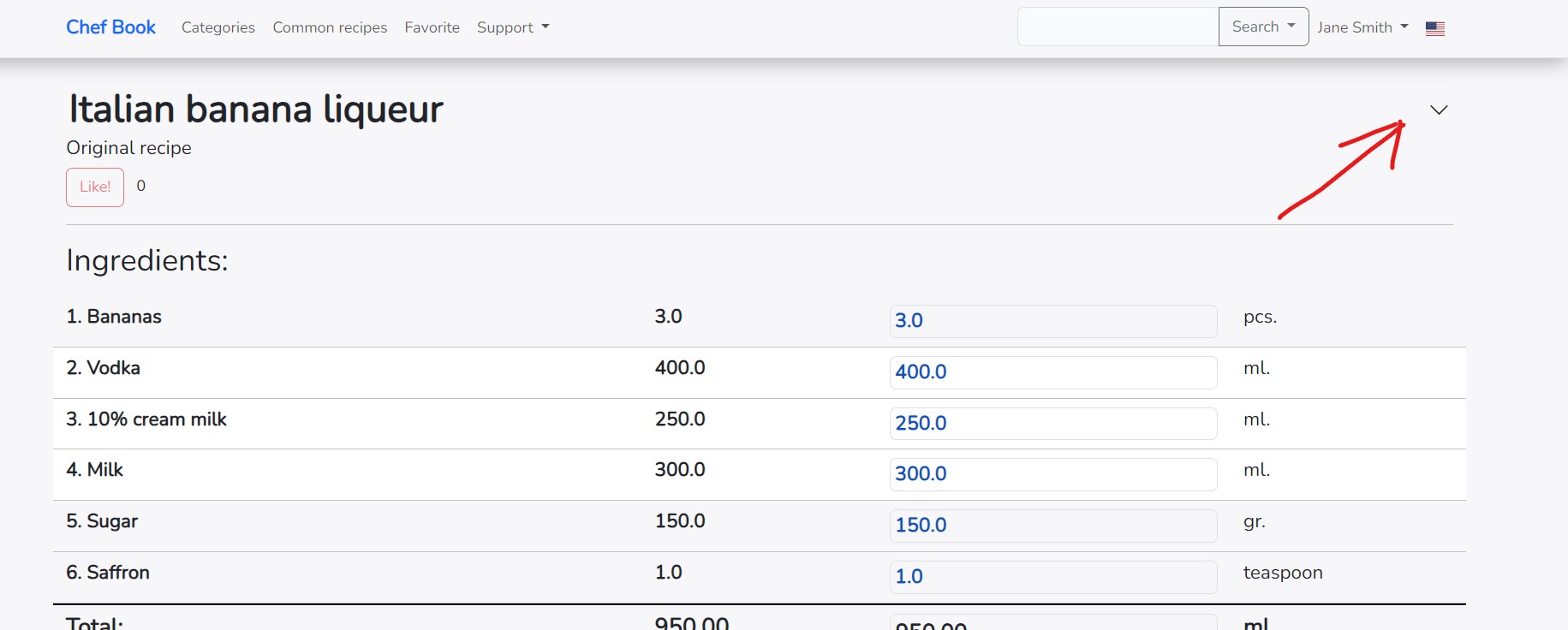
By opening the public recipe and clicking on the recipe name, you can see its properties.
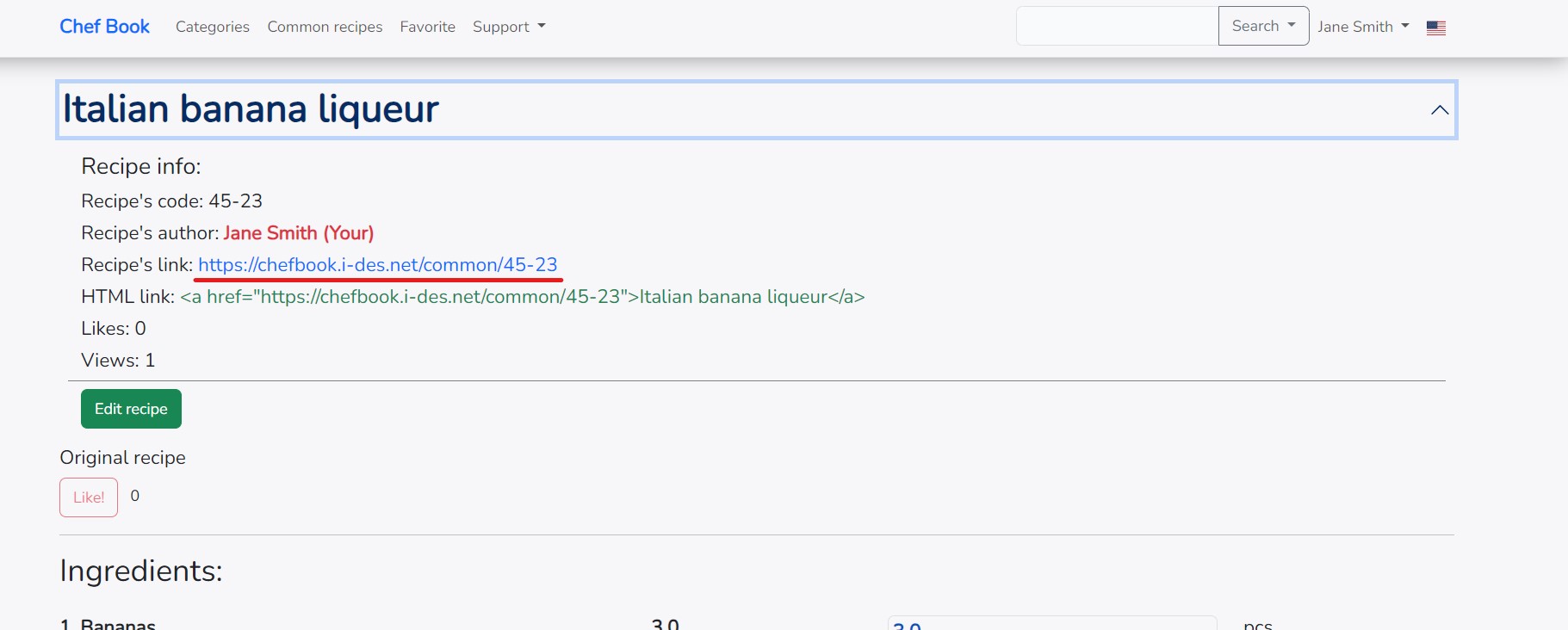
Now you can copy the recipe's internet address and share this link to the recipe, which will be available to all users, including those not registered on the site.
How to edit the recipe name and description?
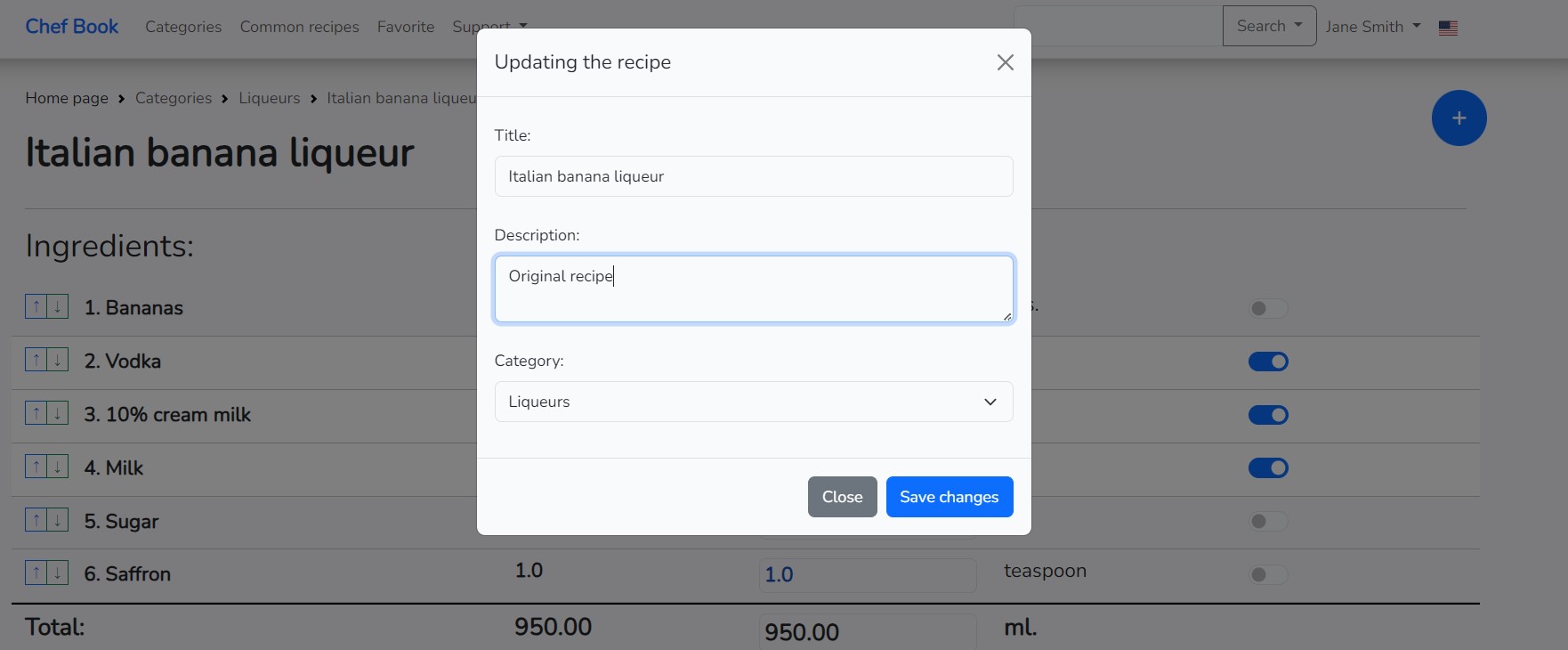
To change the recipe name, description, or category from the recipe page, click on the recipe name, which is clickable.
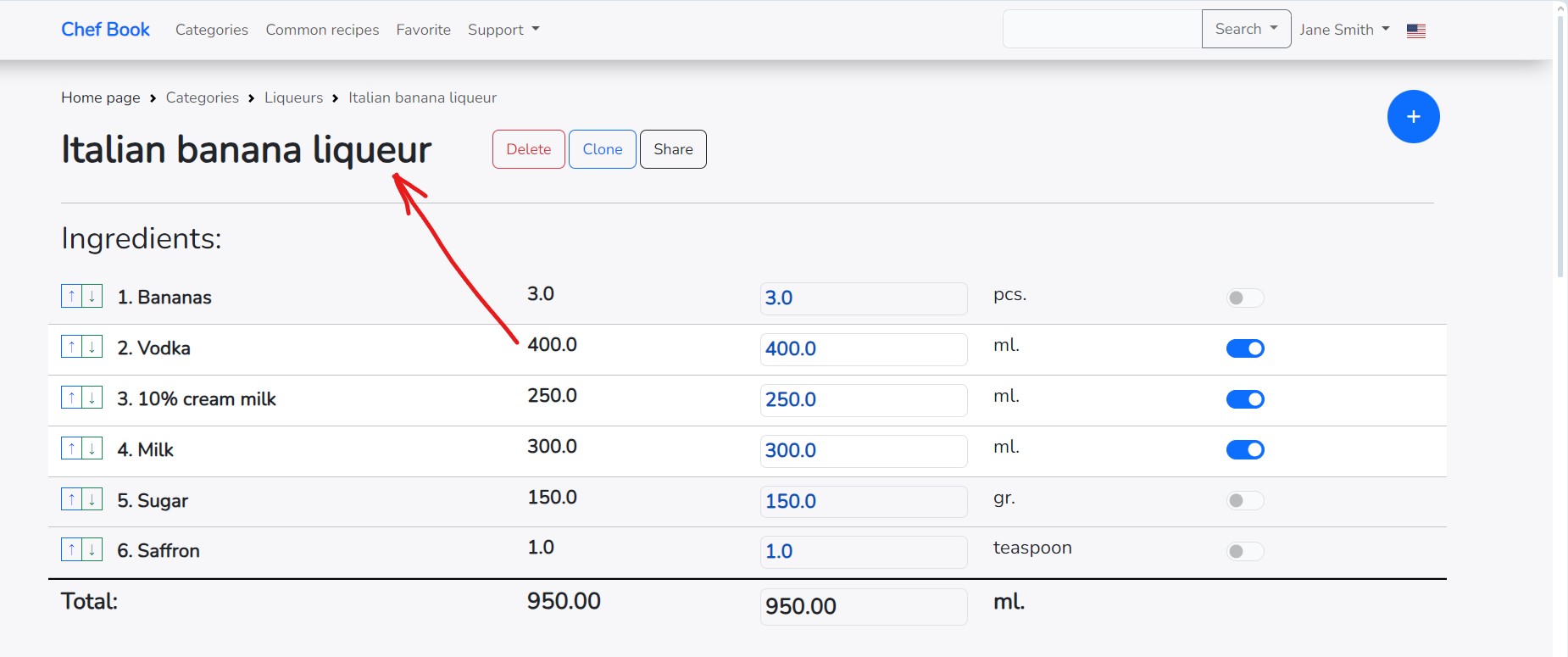
Edit the information and confirm the changes.
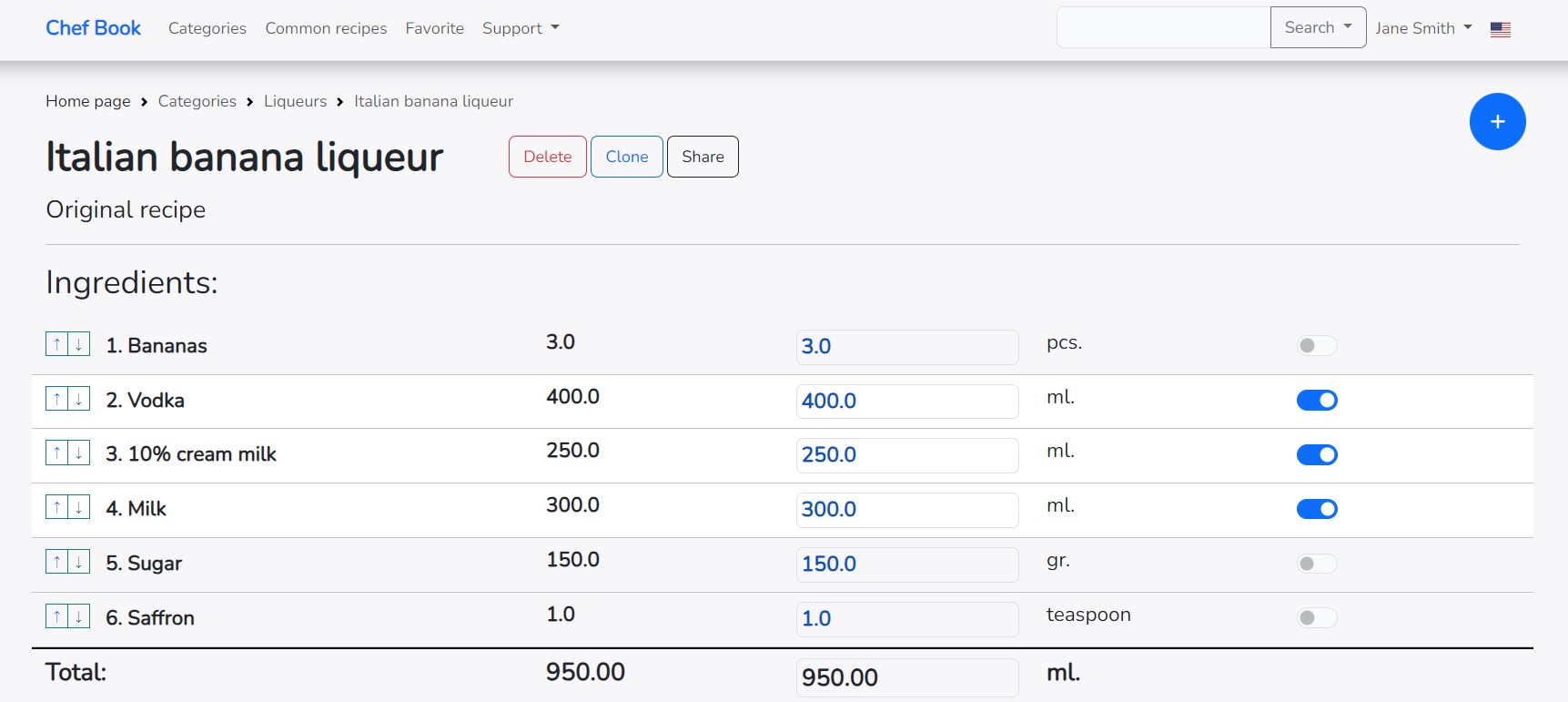
New name and description.
How to delete a recipe or all ingredients?
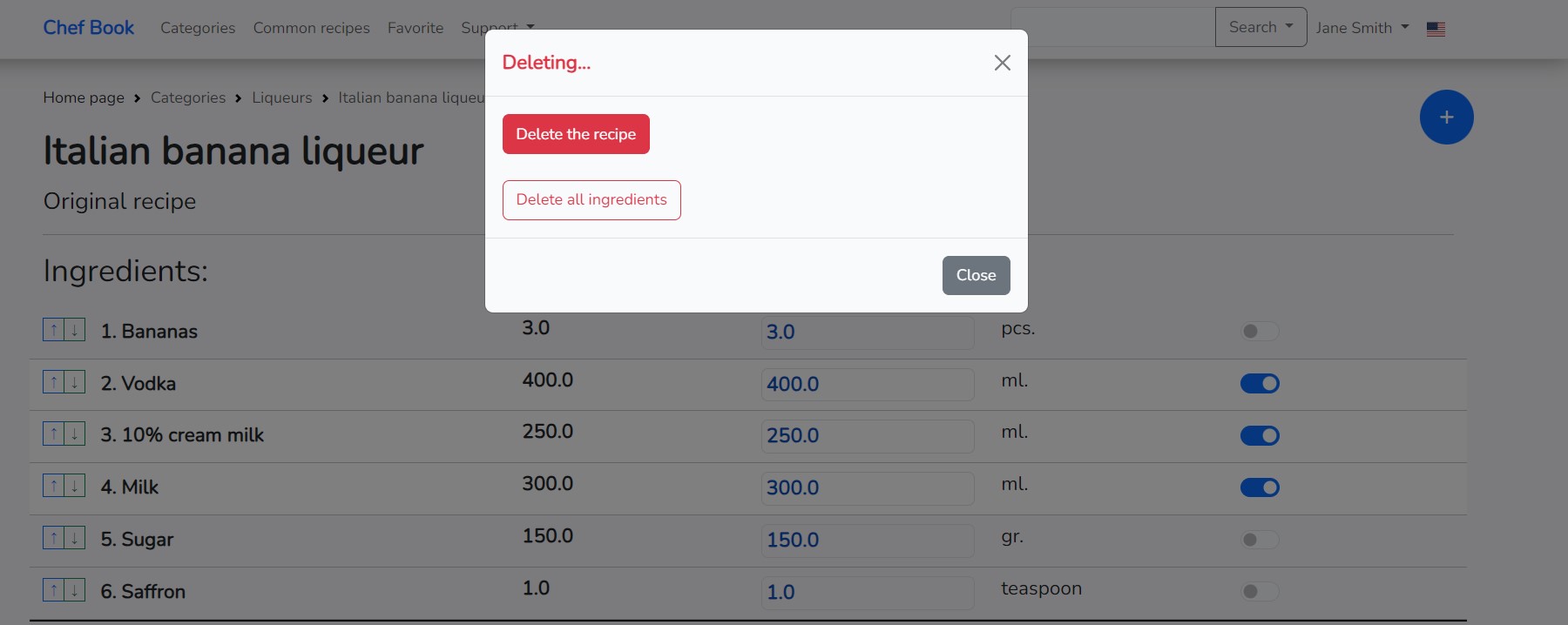
If you want to delete all ingredients at once or delete the entire recipe, click on the "Delete" button located to the right of the recipe name.
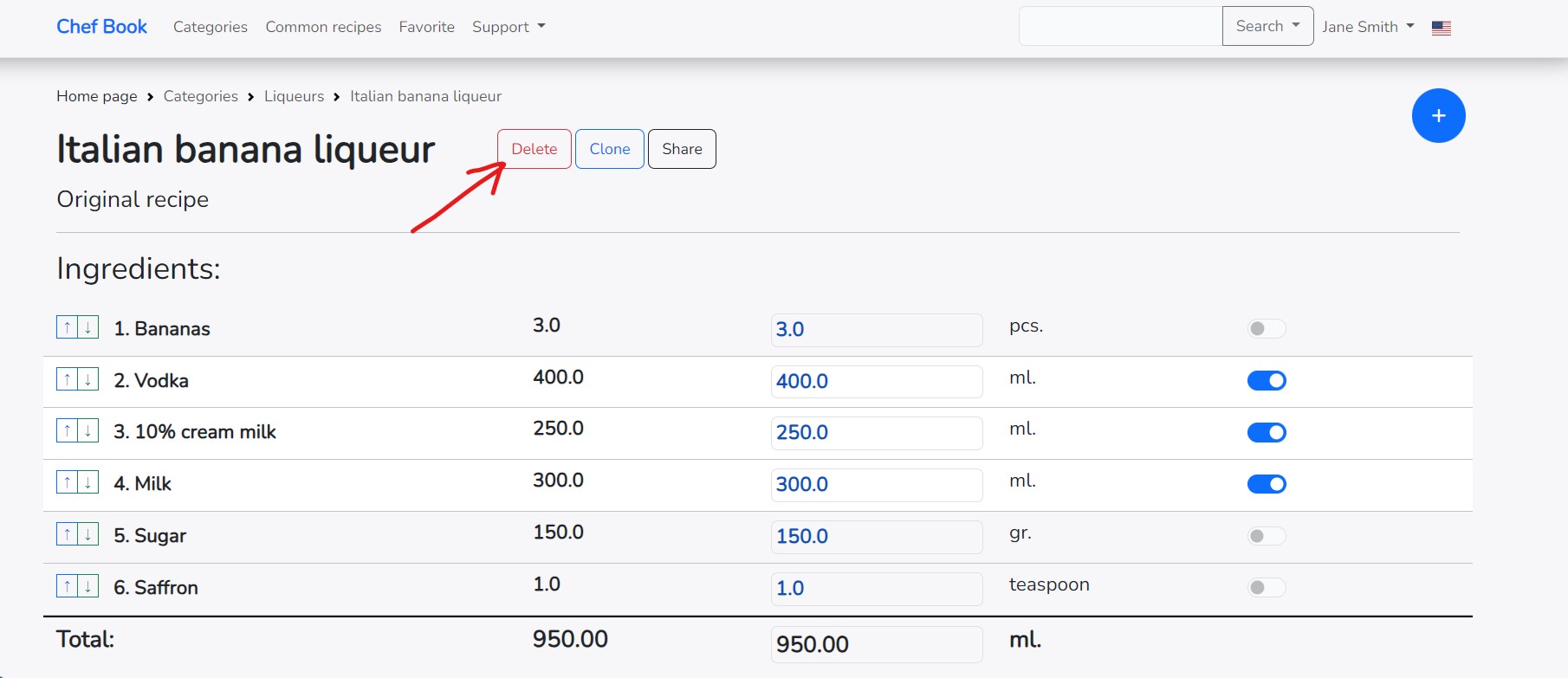
If you want to completely delete the recipe with all ingredients and articles, click on the "Delete the recipe" button. If you only want to delete all ingredients and leave the recipe, click on the "Delete all ingredients" button.
Be extremely careful!
Deletion is an irreversible action. Before deleting anything, think carefully!